

Windows 10 Editions: Home vs Pro, Features, and Which to Choose in 2026
By Editorial Team · Oct 30, 2026
Windows 10 in 2026: the edition is only half the decision
Choosing among the Windows 10 editions used to be simple: Home for personal PCs, Pro for extra business tools, and Enterprise for large organizations. In late 2026, there are two decisions to make: whether to remain on Windows 10 under an applicable Extended Security Updates (ESU) arrangement or move to Windows 11, and which edition fits your needs. Buying Pro does not restore standard Windows 10 support, and Enterprise does not make an unsupported PC fully supported. Before paying to change editions, check whether the computer can run Windows 11 and whether you have a reason to stay on Windows 10. Our companion guide, "When Does Windows 10 Support End? Dates, ESU, and What to Do Now," covers the support transition.The Windows 10 editions at a glance
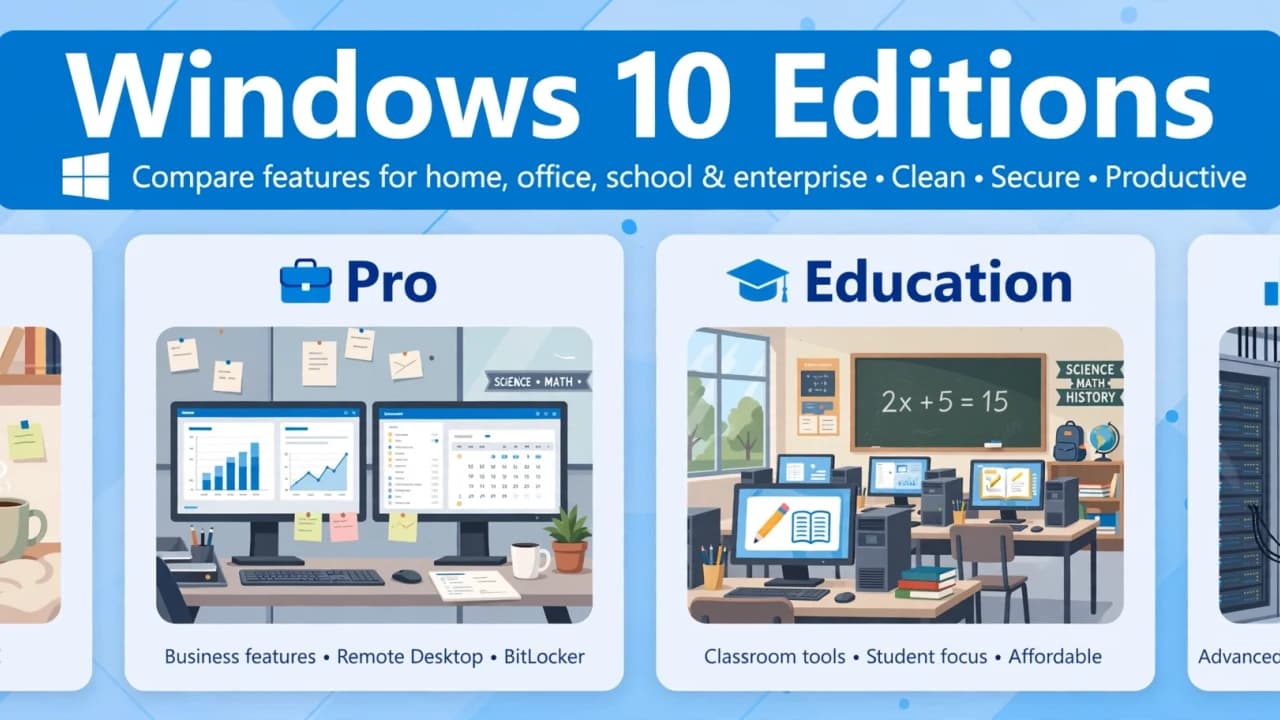
Windows 10 has several editions for different users and organizations:- Home: The consumer edition for everyday use, including browsing, games, schoolwork, and home productivity. It is preinstalled on most retail laptops and desktops.
- Pro: For professionals, power users, and small businesses. It adds encryption, remote access hosting, virtualization, and workplace management features.
- Pro for Workstations: For high-end PCs and demanding workloads. It supports advanced hardware configurations and features such as ReFS and SMB Direct; it is not a gaming-performance tier.
- Education: For qualifying schools and academic institutions. It is designed for institution-managed devices, with capabilities closer to Enterprise than consumer Home.
- Pro Education: An education-focused edition based on Pro, generally deployed by schools on student and staff devices.
- Enterprise: For large organizations that need centralized deployment, security, identity, policy, and device management across many PCs. It is normally licensed through an organization, not consumer retail.
Pro vs Home: the features that actually differ
Home and Pro share the same Windows 10 foundation. Pro is not a general speed upgrade; its value is access to particular tools Home does not include.- BitLocker: Pro includes full BitLocker drive-encryption controls, useful for protecting data if a PC or drive is lost. Some Home devices support device encryption, but it is not the same set of management controls.
- Remote Desktop host: Pro can accept incoming Remote Desktop connections. Home can connect to another PC as a client, but cannot host the session.
- Hyper-V: Pro includes Microsoft's virtualization platform for creating and running virtual machines, useful for testing software or running another operating system.
- Domain join / Active Directory: Pro can join a traditional Windows Server domain so an organization can manage user accounts and PCs centrally.
- Group Policy: Pro provides local policy tools for configuring Windows settings and restrictions more precisely.
- Windows Sandbox: Supported Pro installations can run a temporary, isolated Windows desktop for testing unfamiliar apps or files. Closing it removes the temporary environment.
How to check which edition you are running
Check the installed edition before buying a key or following an upgrade guide:- Open Start > Settings.
- Select System > About.
- Scroll to Windows specifications.
- Read the Edition line, which identifies Home, Pro, or another edition.
How to get each edition and what it costs
For individual buyers, the practical choices are usually Home and Pro. Both have traditionally been available as retail licenses or preinstalled by a PC manufacturer. A new computer normally includes its Windows license in the purchase price.These are familiar U.S. price reference points, not guaranteed October 2026 checkout prices:
- Windows 10 Home: Around $139.
- Windows 10 Pro: Around $199.
- Home-to-Pro upgrade: Around $100, depending on the offer and purchase route.
Upgrade paths
The common consumer change is Home to Pro. Make sure Windows is activated and that your key is specifically for Windows 10 Pro.- Open Settings > Update & Security > Activation.
- Select Change product key.
- Enter the 25-character Windows 10 Pro key and follow the prompts.
Pick Pro if ANY of these 5 apply
Choose Pro rather than Home if you need even one of the features explained above:- BitLocker controls.
- Remote Desktop hosting.
- Active Directory domain join.
- Hyper-V virtual machines.
- Group Policy.
Myths worth dropping
"Pro makes games run faster." The edition label does not boost frame rates. Home and Pro share the same core OS, so comparable PCs should deliver similar everyday performance. Hardware, drivers, game settings, and background activity matter much more. "Enterprise is the premium gamer edition." Enterprise is built for fleet deployment, organizational security, identity, and device management, not higher frame rates or better graphics. "A Pro key fixes Windows 10 support." Changing editions does not change the operating system's support status. Keep the support decision separate from the feature decision.A note about LTSC
Windows 10 Enterprise LTSC is a specialized option for tightly controlled devices, not a general replacement for Home or Pro on a family PC. It has a different servicing model and licensing context; for details, read our dedicated Windows 10 LTS guide https://softcoria.com/guides/windows-10-lts-explained-what-ltsc-is-when-support-ends-and-who-should-use-it/.Which edition should you pick?
Make the support choice first. If your PC is eligible for Windows 11 and your apps and peripherals are ready, moving to a supported Windows version is usually the cleaner long-term option. If you need to remain on Windows 10, check whether an applicable ESU arrangement covers the device and plan a move later. The edition does not change that basic support question. Then match the edition to the job:- Home for everyday personal use without the Pro-only tools.
- Pro for work or advanced home use that requires one or more items on the five-point checklist.
- Pro for Workstations only when specialist hardware and storage capabilities are genuinely needed.
- Education, Pro Education, or Enterprise when a school or employer provides the license and manages the PC. These are organizational choices, not useful retail upgrades for a personal gaming or browsing computer.
FAQ
Is Pro a performance upgrade for games?
No. See "Myths worth dropping" for why the edition name does not provide a general frame-rate boost.Can a Home PC connect to a Remote Desktop host?
See the Remote Desktop entry in "Pro vs Home" for the client-versus-host distinction.What do the N and KN suffixes mean?
They identify the regional media variants described under "The Windows 10 editions at a glance."Can I buy Enterprise as a personal retail license?
See "How to get each edition and what it costs" for the organizational licensing routes.Should I choose Pro if I do not need its extra tools?
Use the five-point checklist above; for ordinary personal use without those requirements, Home is generally sufficient..Related guides
View all →

Is Freeware Safe? How to Tell Good Free Software from Risky Downloads
Editorial Team · Oct 29, 2026

What Is a File EXE? How Windows Executable Files Work, Run, and Stay Safe
Editorial Team · Oct 27, 2026

When Does Windows 10 Support End? Dates, ESU, and What to Do Now
Editorial Team · Oct 26, 2026
Windows 10 LTS Explained: What LTSC Is, When Support Ends, and Who Should Use It
Editorial Team · Oct 25, 2026