
Audacity for Beginners: How to Record and Edit Audio on Windows
Install Audacity 4 from the official Windows page, pick a microphone, record a take, trim it, and export a file — using the labels in the current Audacity manual.
By Editorial Team · Oct 10, 2026
Audacity is a free desktop recorder and editor. On Windows it is enough for a voice memo, a podcast rough cut, or a clean export of a file you already have. It is not a shortcut to a finished record, and it is not a MIDI studio. This walkthrough follows the official beginner manual for the current app, then stops where that manual stops.
The catalog page is Audacity for Windows. The build documented there is 4.0.1, dated 30 September 2026 on the official changelog. Version 4.0.0, dated 3 September 2026, rebuilt the interface on Qt. Menu names below come from the getting-started manual updated 7 October 2026, not from older Audacity 3 screenshots.
What Audacity is for
The official FAQ describes recording from a microphone or a mixer, importing existing audio, and editing with cut, paste, labels, clip trim and stretch, a loop region, and a spectrogram view. It also names noise reduction, EQ, a compressor, a limiter, reverb, and tempo or pitch tools. Common import and export types include MP3, M4A, AIFF, FLAC, and WAV. Extra formats can require optional FFmpeg.
Projects saved as .aup3 in Audacity 3 open in Audacity 4. The FAQ is also plain about the limit: Audacity is more than a simple editor, but it does not include MIDI editing or virtual instruments. Third-party plugins are optional. They are not the same thing as the tools shipped with the editor, and the ARM64 Windows build does not support plugins.
Where to get it
Download from the official Windows page or the Microsoft Store listing that Audacity identifies as its Store build. Softcoria does not host the installer. Ignore mobile-store apps that reuse the name: the FAQ says there is no official iOS or Android Audacity.
For 4.0.1 the Windows page lists:
- An installer offered through MuseHub.
- An x86_64 MSI and a portable 7z archive.
- ARM64 MSI and 7z packages. These need Windows 11, have no plugin support, and need a Windows-on-ARM FFmpeg build if you want the extra formats. The ordinary FFmpeg installer does not apply. ARM64 is described as not thoroughly tested.
GitHub packages publish SHA-256 values. Compare those if you use the MSI or 7z. MuseHub is optional. If you are choosing between x64 and ARM64, read x64 vs x86 vs ARM64 Windows and check Settings > System > About > System type before you download.
The official pages say Audacity is tested on Windows 10 and 11 and may also run on 8.1, 7, and Vista. No specific CPU or GPU figure is published. The install manual asks for about 500 MB of free disk space and permission to install software. Fast local disk or SSD access is required. Network drives, consumer external disks, and USB sticks may be unreliable for the project files. Older last-tested builds exist for Vista and 7 (2.3.3). Those are not 4.0.1.
Install and open it
The install chapter says the Windows download is an .exe, that you can accept the defaults, and that setup creates a Start menu entry. It also says 64-bit and 32-bit builds are listed and that you should choose 64-bit unless you know the PC is 32-bit. On a current Windows 11 PC, that means the 64-bit package. Use the ARM64 package only when System type says an ARM-based processor.
A portable 7z archive does not need the same setup. Open it with a tool such as 7-Zip and run it from a local folder, not from a network drive. The general install habits in How to Safely Download and Install Software on Windows still apply: confirm the site, then run the file you hashed.
The first launch can validate audio plugins. Validate checks them now. Skip this time starts without the ones not yet checked, and Audacity asks again later. A short setup then offers a light or dark theme, Follow system theme, Enable high-contrast, Colorful or Classic clips, and a Modern or Classic workspace. Classic layout resembles Audacity 3. Every one of these choices can be changed later from Preferences or the toolbar. Decline cloud or account prompts you do not want. The desktop editor does not require them.
Choose the microphone and the speakers
The microphone chapter puts both devices in Audio setup, in the middle of the top bar. By default Audacity uses the system microphone and speakers. Check them before you record.
- Playback device is where you hear the take. Headphones matter more than the microphone brand, because speaker playback can leak back into the recording.
- Recording device is the microphone or audio interface, listed by its name.
- Recording channels sets the channel count. One microphone is one channel, so a voice wants 1 (Mono). Stereo is for music and for files that are already stereo.
- If the device is missing, it was probably plugged in after Audacity opened. Rescan audio devices, at the bottom of the Audio setup menu, picks it up without a restart.
A USB microphone goes into a USB port. A 3.5 mm microphone goes into the microphone input, not the headphone jack. Many laptops have one combined headset socket, and a microphone-only plug may need an adapter. An XLR microphone needs an audio interface. It cannot plug into the PC by itself.
The microphone button in the toolbar opens Microphone level. Speak at the volume you will actually use. The manual wants normal speech to peak between −18 dB and −6 dB. Sound that touches 0 dB is clipped, and clipping cannot be repaired later. Turn on input monitoring in that flyout plays the microphone through your headphones so you can hear yourself. Leave it off if you are not wearing headphones.
Record a take
The recording chapter stores audio in a clip on a track. Add track at the top of the track area offers Mono, Stereo, and Label. Label tracks hold text markers, not audio. Pick Mono for a voice. If you skip this, pressing Record creates a track for you. Recording goes onto the selected track: click its header so it highlights.
The round red Record button is in the transport controls at the left of the top bar. Press it, or R. Pause holds the take without ending it. Stop, or Space, ends it. Space then plays from the playhead.
- Record a few seconds of silence first. That gap gives you room to trim, and a sample of the room if you later use noise reduction.
- Say the line. If you stumble, pause, leave a moment of silence, and say it again. Cutting the mistake is faster than starting over.
- Stop and play it back on headphones.
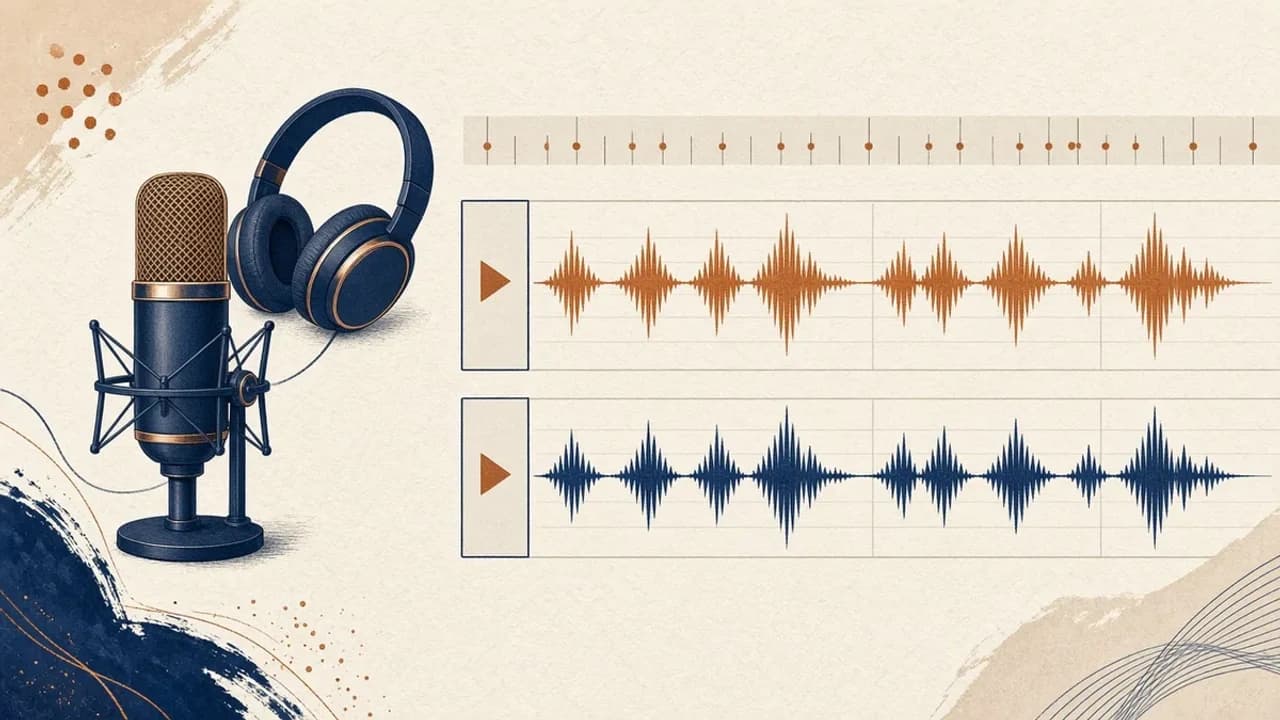
Read the waveform as well as listening. A solid block that fills the track height was too loud. Use View > Show clipping in waveform to mark clipped samples in red, lower the level, and record again. A nearly flat line was too quiet. Move closer or raise the level and record again. The Amplify effect can lift a take you cannot repeat, but it also lifts the room noise. Clear movement with peaks well short of the top is the healthy shape.
Practical recording habits from the same chapter: stay about a hand-span from the microphone, speak across it rather than straight into it so P and B sounds do not thump, and turn off fans and other hums. Curtains, a rug, and clothes absorb reflections better than any later effect.
Select, trim, move, and cut
The editing chapter is clip work. Import an existing file by dragging it onto the window or with File > Import. Select a clip by clicking its header or by double-clicking the body. The top handles trim the ends. The lower handles, marked with a clock, change speed. Drag a clip by its header to move it along the track, onto another track, or into the empty space below, which creates a new track. Dragging inside the waveform makes a time selection instead.
- Hold Shift and click to select a run of clips on the same track. Hold Ctrl and click to pick clips one by one.
- Click and drag in the waveform for a time range. Select > Select all, or
Ctrl+A, selects the project. Hold Ctrl and scroll to zoom. - Press Play before you delete. Playback follows the selection, so you hear the stretch you are about to change.
- The first delete asks you to Leave a gap or Close gap (ripple). Leave a gap when other tracks must stay in time. Close the gap when you are cutting a stumble from a single voice.
Shift+Deleteripple-deletes on the current track.Ctrl+Deleteripple-deletes across every track. - Trim clip (
Ctrl+T) keeps the selection and drops the rest of the clip. Silence audio (Ctrl+L) clears a cough without shortening the timeline. - The split tool sits behind the scissors button, or press
S. Click to cut the clip in two.Ctrl+Isplits at the cursor or at both edges of a selection. - Cut, Copy, and Paste are on the Edit menu:
Ctrl+X,Ctrl+C,Ctrl+V.Ctrl+Zundoes the last edit.
Right-click a clip, or open its ⋯ menu, and choose Open pitch and speed dialog when you need a pitch shift in semitones rather than a drag on the clock handle. Tick Snap in the toolbar if you want edits to land on a time grid.
Tracks and volume
Each track has a header with its name and a meter. Add another Mono or Stereo track when a second voice or a music bed should stay separate. Move a clip onto that track by its header. While tracks must stay aligned, prefer Leave a gap so a cut in the voice does not slide the music.
Volume inside a clip is drawn, not guessed. Turn on the clip gain tool in the toolbar, click the line to add a point, and drag. Pull the line down for a fade, or dip it under a line of speech. The waveform shrinks as you drag. Turn the tool off when you are finished so ordinary clicks select clips again. The manual does not publish a single “correct” loudness number for every destination. Follow the number your publisher or podcast host gave you, if they gave you one.
Effects you can actually name
Use the names the current docs use, and do not treat optional plugins as built-in.
- Amplify raises a quiet take and the noise with it. The recording chapter says to fix the level and re-record when you can.
- The FAQ lists noise reduction, EQ, compressor, limiter, reverb, and tempo or pitch tools as part of finishing a recording. The silence at the start of a take is the sample the recording chapter mentions for noise reduction later.
- Pitch and speed for a single clip are the clock handles and Open pitch and speed dialog, described above.
- VST3 and Nyquist plugins are supported on desktop builds. LV2 is a Linux note and Audio Units are macOS. MuseHub can supply extra effects. Those extras are optional. The ARM64 Windows build has no plugin support.
This guide does not invent an Effects-menu click path. If a control is not in the beginner chapters cited here, follow the manual page for that tool rather than a tutorial written for Audacity 3.
Export
Export with File > Export audio or Ctrl+Shift+E. The Type menu offers:
- Export full project audio — the usual mix of everything in the project.
- Export selected audio — only the current selection.
- Export audio in loop region — the stretch marked by the loop region.
Then name the file, pick a folder, and choose the format. The dialog can also set mono or stereo, sample rate, and, for MP3, the bit rate. The manual’s default when nobody else has specified one: MP3 at 128 kbps for speech and 256 kbps for music. Export mono recordings as mono so you do not store two identical channels. Opus and M4A can beat MP3 at the same size if the destination accepts them. FLAC and WavPack shrink WAV without throwing away samples. Version 4.0.1’s changelog also adds export-multiple. Use that only if you see it in your build. Do not assume a plugin or a cloud upload is required to write a local file.
Saving the project and exporting a finished file are different. Keep the project if you still need to edit. The exported MP3 or WAV is the file you send.
When the microphone, playback, or export fails
- No device in the list. Plug it in, then Rescan audio devices.
- You hear nothing on playback. Check Playback device first. Confirm the headphones are selected, not an HDMI display you are not using.
- The meter barely moves. Raise Microphone level or move closer. Amplify is the fallback, not the plan.
- The waveform is a flat-topped block. You clipped. Re-record. Do not expect an effect to restore those peaks.
- Export is much larger than expected. You exported mono as stereo, or you picked WAV when MP3 was enough.
- A format is missing. Install the optional FFmpeg build that matches your Windows package. On ARM64 that means a Windows-on-ARM FFmpeg, and plugins still will not load.
- The project stutters. Move it off a network drive or a USB stick onto a local SSD. That warning is on the official Windows page.
- Plugin scan blocks startup. Skip this time, then validate when you actually need those plugins.
A cleaner recording, without extra software
Get the level right before you press Record. Wear headphones. Record room tone at the start. Leave a breath of silence around mistakes so the ripple delete has somewhere to cut. Keep the voice on its own mono track. Export mono speech as mono. None of that requires MuseHub, a cloud account, or a plugin.
FAQ
Is Audacity free on Windows?
Yes. Audacity is GPL-licensed. Optional cloud storage on audio.com can be paid and is not required to record or export on the desktop.
Which Windows version should I download?
The official Windows page lists an x86_64 MSI, a portable 7z archive, ARM64 packages, and a MuseHub installer for 4.0.1. ARM64 requires Windows 11. Read System type if you are unsure which package matches the PC.
Do I have to install MuseHub?
No. MuseHub is the official distributor for extra sounds and effects. The Windows page also publishes direct MSI and portable 7z builds.
Can Audacity replace a full music studio?
The FAQ says Audacity can record and edit, including non-destructive editing and realtime effects, but it does not include MIDI editing or virtual instruments the way a traditional DAW does.
Why is my recording distorted?
The manual says a solid block that fills the track height is clipping. Clipping cannot be repaired. Lower the microphone level so speech peaks between −18 dB and −6 dB, then record again.
Which format should I export?
The export manual says MP3 is the format most destinations accept: 128 kbps for speech and 256 kbps for music, unless someone gave you different numbers. Export a mono recording as mono.
Related guides
- x64 vs x86 vs ARM64 Windows — pick the package that matches System type.
- How to Safely Download and Install Software on Windows — confirm the page before you run setup.
Related software
- Audacity — the Softcoria page for the 4.0.1 Windows builds.
- 7-Zip — useful if you chose the portable 7z archive.
- Audio software for Windows — other catalog listings. They are not required to use Audacity.
Related guides
View all →Windows Update Assistant: How to Download and Use It to Update Windows 10
Windows Update Assistant installs the newest Windows 10 feature update when Settings will not offer it. Download it safely from Microsoft, pass the compatibility check, and finish the upgrade step by step — plus the checks to run before and after.
Editorial Team · Oct 16, 2026
PatchCleaner Guide: How to Manage Windows Installer Files Safely
What HomeDev’s PatchCleaner 1.4.2.0 actually compares in C:\Windows\Installer, why Move is safer than Delete, and what the 2016 release does not claim.
Editorial Team · Oct 10, 2026
How to Remove Shortcut Viruses from USB Drives on Windows
A practical path for a USB stick that shows shortcuts instead of your files: protect the data, check Windows, and use Shortcut Virus Remover only for what its publisher actually documents.
Editorial Team · Oct 10, 2026


How to Check if a Windows Program Is Safe Before Installing It
A pre-install review for Windows 10 and 11: publisher, filename, Authenticode, SmartScreen, hash, and a local scan — without pretending any one check is enough.
Elena Voss · Sep 21, 2026