
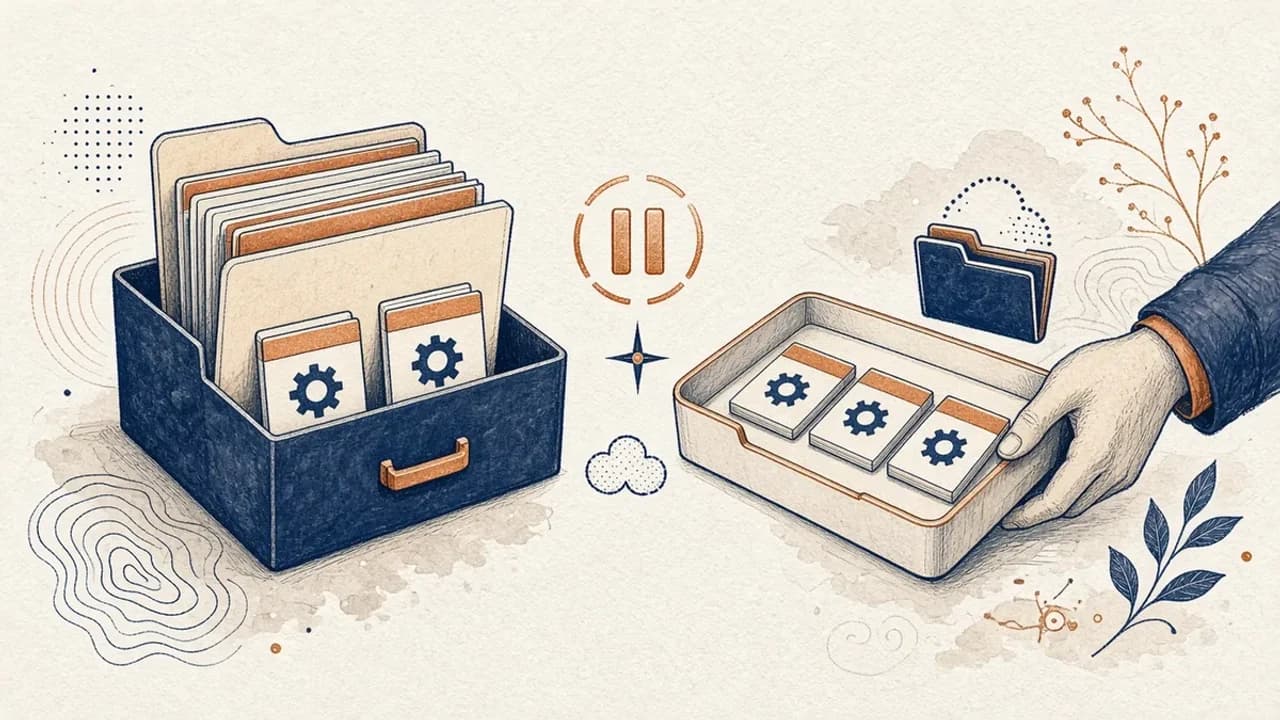
PatchCleaner Guide: How to Manage Windows Installer Files Safely
What HomeDev’s PatchCleaner 1.4.2.0 actually compares in C:\Windows\Installer, why Move is safer than Delete, and what the 2016 release does not claim.
By Editorial Team · Oct 10, 2026
PatchCleaner is a free Windows utility from HomeDev that compares files in C:\Windows\Installer with the packages Windows still knows about. The point is orphaned installer files, not a faster PC and not a license to empty a system folder. The catalog page is PatchCleaner. The latest build on the official page is 1.4.2.0, dated 3 March 2016.
That date matters. The page does not describe a newer release, a digital signature, or Windows 11. Use the tool only if you understand that gap, and prefer Move over Delete.
What PatchCleaner is
HomeDev’s page calls PatchCleaner 100 percent free, with optional donations. The publisher is HomeDev. The installer is an unsigned 7-Zip self-extracting archive named PatchCleaner_1.4.2.0.exe, about 1.26 MB, containing setup.exe and PatchCleaner.msi. A separate portable project is linked from that page on SourceForge.
The site patchcleaner.com is not the source used here. It is a different site that reuses the product name. Do not treat its claims, including any mention of Windows 11, as HomeDev’s.
Version 1.4.2.0’s own notes fix a UI crash when an object is missing, a crash on a null date, clearer handling when VBScript is not configured, a duplicate-patch display bug, and a missing-file display. Those notes are bug fixes, not a new scanning method.
What the Windows Installer folder is for
When you install or patch many desktop programs, Windows Installer keeps MSI and MSP files in the hidden folder C:\Windows\Installer. Windows uses that store later to repair a program, change features, or uninstall it. The files are not a general-purpose downloads folder, and they are not all leftovers.
After months of updates, some files in that folder no longer match a package Windows still has registered. Those are the orphans PatchCleaner is aimed at. The folder can grow large. Size alone does not mean every file in it is safe to remove. A file Windows still references is how a later uninstall or repair is supposed to work.
What PatchCleaner does, according to HomeDev
HomeDev’s description of the method is specific:
- Windows exposes current installer and patch registrations through WMI.
- PatchCleaner asks for that list with WMI and VBScript, then compares it with the files on disk in
C:\Windows\Installer. - A file that is on disk but missing from Windows’ list is treated as orphaned.
- You can Move those files, which HomeDev recommends, or Delete them.
HomeDev does not warrant zero false positives. That is why version 1.4 added exclusion filters. They are preloaded to skip names such as Acrobat, after Adobe Reader and Acrobat patches were mis-detected. Leave that exclusion in place unless you know why you are removing it.
Since version 1.3 there is a command-line mode. /d deletes. /m moves to the saved location. /m followed by a path moves there instead. Output goes to the console and to the Windows Event Log. The command line is the same decision as the window. It is not a safer one.
The program needs working VBScript. If VBScript is broken or disabled, HomeDev says PatchCleaner cannot run. In practice, changing files under C:\Windows\Installer also needs administrator rights. No RAM, disk, or CPU speed minimum is published.
Where to get it
Softcoria does not host the file. Download PatchCleaner_1.4.2.0.exe only from homedev.com.au/free/patchcleaner, or use the portable project HomeDev links on SourceForge. Expect Microsoft Defender SmartScreen to warn you: the file is unsigned. Read how to check a Windows program before you install it before you click through that warning. A warning on an unsigned 2016 binary is a reason to scan the file, not a reason to fetch a random re-upload with the same name.
The official requirements are Windows 7, 8, or 10, x86 or x64, and .NET Framework 4.5.2. Windows XP is not supported. The author confirmed Windows Server 2008 R2 x64 and Server 2012 R2 64-bit. Windows 11 is not in that list. If the PC is Windows 11, this guide cannot tell you the tool still matches every current Installer case, because HomeDev does not say so.
If setup fails, HomeDev’s fallback is to open the self-extracting archive with 7-Zip — the catalog page is 7-Zip — and run PatchCleaner.msi. The broader install path is How to Safely Download and Install Software on Windows. If an upgrade from 1.3 crashes, HomeDev says to uninstall, delete the HomeDev\PatchCleaner program folder, and install again.
Run a check and read the result
Start PatchCleaner only after Windows Security has scanned the file you downloaded. The comparison needs VBScript and access to the Installer folder, so Windows will ask for administrator approval. Approve that only for this program, not as a habit for unknown files.
The result is a list of files present on disk and absent from the WMI registration list. Read it as “not in Windows’ current list,” not as “safe to destroy.” Check whether an exclusion is hiding Acrobat-related names. A long list means a lot of disk use. It does not mean each row is equally abandoned. If the tool reports that VBScript is not configured, stop. Forcing the folder cleanup another way is the more dangerous path.
Move, delete, and the command line
HomeDev’s recommended action is Move. The files leave C:\Windows\Installer and sit in a folder you can copy back from. Delete removes that option. Use Delete only after a moved set has sat through the installs, updates, and removals you actually care about.
The same choice exists on the command line, unchanged since 1.3:
PatchCleaner.exe /m/m moves orphans to the saved location and writes the outcome to the console and the event log. /d deletes them instead. Adding a path after /m chooses a different destination. Run either command only from the copy you verified, in a console you opened on purpose. Do not put /d in a scheduled task on the first day.
Judge the risk before you remove anything
Do not delete installer files because a number on screen looks large. Move them, keep that copy, and see whether Windows still repairs and removes programs.
- Make a backup of anything you cannot reinstall, or at least note which programs you would struggle to download again.
- Prefer Move. The moved folder is the backup of these particular files.
- Keep the Acrobat exclusion unless you have a reason to drop it. HomeDev added it because of known false positives.
- Do not combine this with a manual delete of the same folder in File Explorer.
- On Windows 11, treat the whole result as unconfirmed. The requirements text stops at Windows 10.
Reclaiming disk space is the benefit HomeDev describes. A quieter or faster PC is not. If the Installer folder is not actually large, there is little reason to touch it.
Why you should not empty the folder yourself
Selecting everything in C:\Windows\Installer and pressing Delete skips the only check PatchCleaner claims to do: the comparison with packages Windows still has registered. Files that are still registered are how repair and uninstall find their packages. Removing them by hand can leave a program that will not update, change, or uninstall, with no moved copy to restore.
The folder is hidden because it is a system store, not because every file in it is disposable. PatchCleaner’s value, when it has any, is that it asks Windows first. A manual sweep asks nothing.
If install, update, or uninstall breaks afterward
- If you moved files, copy them back into
C:\Windows\Installer. Do not rename them. Then retry the uninstall or the repair from Settings > Apps. - If you deleted them, the package Windows wanted may be gone. Reinstalling that program from its publisher is the usual recovery. There is no PatchCleaner undo for a delete.
- If PatchCleaner itself will not start after an upgrade from 1.3, uninstall it, remove the
HomeDev\PatchCleanerfolder under Program Files, and install 1.4.2.0 again. That is HomeDev’s own recovery note. It does not repair other programs. - If VBScript errors continue, fix VBScript or stop using the tool. Do not switch to deleting the Installer folder because the scanner cannot run.
- Leave Windows Security enabled the whole time. Nothing on the HomeDev page asks you to turn it off.
FAQ
Are all files in C:\Windows\Installer junk?
No. Windows keeps installer packages there so it can repair, change, or remove programs. PatchCleaner only flags files that are on disk but missing from the list Windows still has registered.
Does PatchCleaner make Windows faster?
HomeDev describes it as a way to reclaim space from orphaned installer files. It does not claim a general performance boost, and this guide does not either.
Should I delete or move the files it lists?
HomeDev recommends Move so you can copy a file back if a program later needs it. Delete is available, but a false positive is harder to undo.
Does it support Windows 11?
The official requirements list Windows 7, 8, or 10, on x86 or x64, plus .NET Framework 4.5.2. Windows 11 is not claimed. The author confirmed Server 2008 R2 and Server 2012 R2. Treat anything newer as unstated.
Why do security tools warn about the download?
HomeDev says the binary is not code-signed and that signing is not planned for this free tool. An unsigned file can trigger SmartScreen. That is not proof of malware, and it is not proof of safety. Download only from homedev.com.au and scan the file with Windows Security.
A program will not uninstall after I cleaned the folder. What now?
If you used Move, copy the files back into C:\Windows\Installer and try the uninstall again. If you deleted them, Windows may no longer have the package it needs. Do not empty the folder by hand to “finish” the job.
Related guides
- How to Check if a Windows Program Is Safe Before Installing It — what an unsigned installer warning does and does not mean.
- How to Safely Download and Install Software on Windows — confirm the page, then run setup.
Related software
- PatchCleaner — the Softcoria page for HomeDev’s 1.4.2.0 build.
- 7-Zip — the fallback HomeDev suggests when the self-extracting setup fails.
- Utilities for Windows — other catalog listings. They are not a substitute for the Move-first rule above.
Related guides
View all →Windows Update Assistant: How to Download and Use It to Update Windows 10
Windows Update Assistant installs the newest Windows 10 feature update when Settings will not offer it. Download it safely from Microsoft, pass the compatibility check, and finish the upgrade step by step — plus the checks to run before and after.
Editorial Team · Oct 16, 2026
Audacity for Beginners: How to Record and Edit Audio on Windows
Install Audacity 4 from the official Windows page, pick a microphone, record a take, trim it, and export a file — using the labels in the current Audacity manual.
Editorial Team · Oct 10, 2026
How to Remove Shortcut Viruses from USB Drives on Windows
A practical path for a USB stick that shows shortcuts instead of your files: protect the data, check Windows, and use Shortcut Virus Remover only for what its publisher actually documents.
Editorial Team · Oct 10, 2026


How to Check if a Windows Program Is Safe Before Installing It
A pre-install review for Windows 10 and 11: publisher, filename, Authenticode, SmartScreen, hash, and a local scan — without pretending any one check is enough.
Elena Voss · Sep 21, 2026