
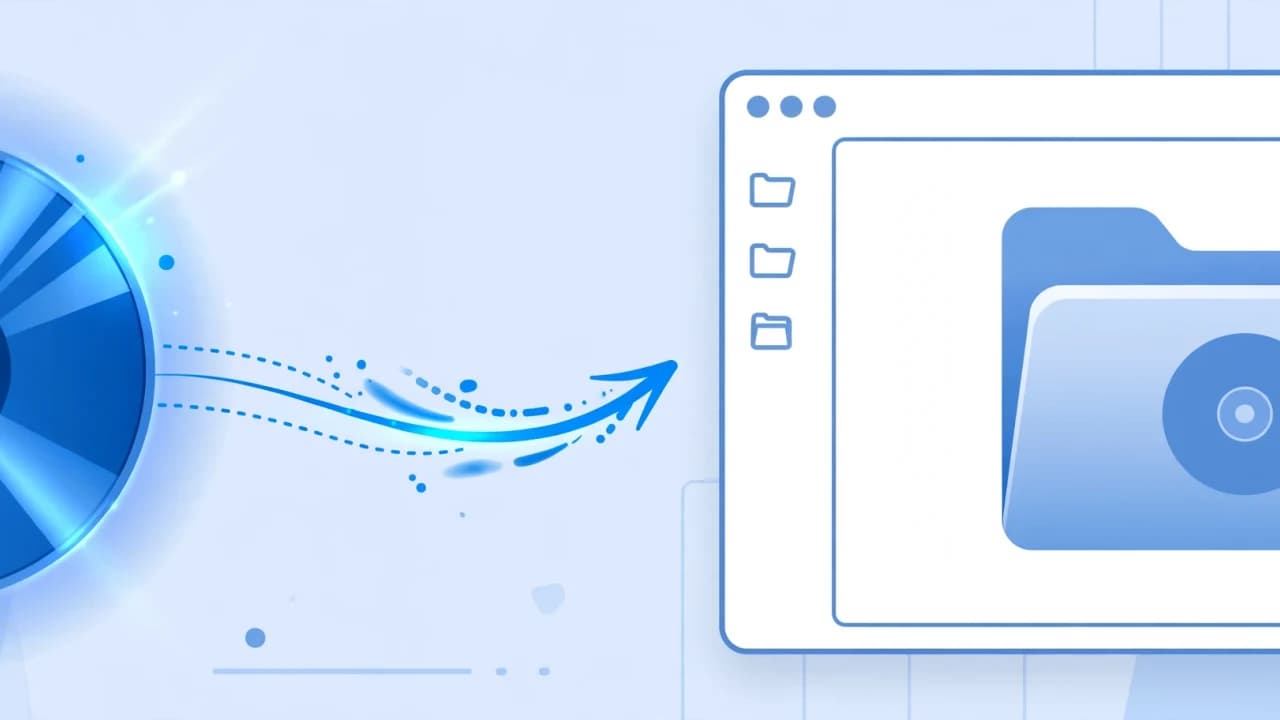

How to Mount an ISO File on Windows 10 and 11
By Editorial Team · Oct 31, 2026
An ISO file contains a complete copy of a disc, such as a Windows installation DVD, software installer, or recovery disc. You do not need to burn it to a physical DVD to access its contents. Windows 10 and Windows 11 can open ISO files directly by mounting them as virtual drives.
Learning how to mount an ISO file is straightforward. You can double-click the file, use the right-click context menu, select an option in File Explorer, or run a PowerShell command. Once mounted, the ISO appears under This PC with its own drive letter, just like a physical DVD drive.
This guide explains all four methods, how to unmount an ISO when you finish, and what to do when Windows cannot find the Mount option or displays a mounting error.
Mounting an ISO means making Windows treat the disc image as if you had inserted a physical CD or DVD into your computer.
Instead of extracting the contents into a regular folder, Windows creates a virtual optical drive and loads the ISO into it. The virtual drive receives its own drive letter, such as D:, E:, or F:.
After mounting, you can:
Open the virtual drive through File Explorer.
Browse its folders and files.
Copy individual files to your computer.
Run an installer or another executable stored inside the ISO.
Access Windows installation files without burning a physical disc.
The mounted ISO appears under This PC, alongside your regular drives. You can open it just like a DVD inserted into a physical drive.
There are two important things to remember:
Mounted ISO files are read-only. You can access and copy their contents, but you cannot modify the original disc image by adding or deleting files inside the virtual drive.
Mounting an ISO on Windows 8, Windows 10, or Windows 11 does not require administrator rights. This differs from mounting a virtual hard disk (VHD), which requires elevated privileges.
Windows includes built-in ISO mounting support, so you do not need to install additional software. Choose whichever of the following methods is most convenient.
Method 1: Double-Click the ISO File
Double-clicking is the quickest way to mount an ISO when Windows Explorer is configured as the default application for ISO files. This method works on Windows 8 and later, including Windows 10 and 11.
Follow these steps:
Open File Explorer by pressing Windows + E.
Navigate to the folder containing your ISO file.
Locate the file with the .iso extension.
Double-click the ISO file.
Wait for Windows to mount the image.
Open File Explorer and select This PC from the left sidebar. You should see a new DVD drive containing the ISO's files.
Double-click the virtual drive to browse its contents. You can then open folders, copy files, or launch an installer when appropriate.
If double-clicking opens WinRAR, 7-Zip, or another application instead, Windows may have a different default application assigned to ISO files. See the troubleshooting section below.
The right-click method is useful when you want to choose the mounting action directly instead of relying on the default application.
Open File Explorer.
Find the ISO file you want to mount.
Right-click the file.
Select Mount from the context menu.
Open This PC to find the new virtual DVD drive.
On Windows 11, you might need to select Show more options to access the traditional context menu, depending on your Windows version and configuration.
After mounting, double-click the virtual drive to view the ISO's contents.
Microsoft also explains this process in its official Windows 11 ISO instructions (https://www.microsoft.com/en-ca/software-download/windows11).
Another way to mount an ISO is through the File Explorer interface. Depending on your Windows version, the relevant command may appear in the toolbar or ribbon.
Open File Explorer.
Navigate to the folder containing your ISO.
Click the ISO file once to select it.
Look for the Mount button in the File Explorer toolbar or ribbon.
In Windows 10, you may see a Disk Image Tools section with a Manage tab. Open it and select Mount.
In Windows 11, check the command bar for the Mount option when it is available.
Windows will create a virtual drive and make the disc image accessible through This PC.
This method is convenient when you are already working in File Explorer and prefer using the toolbar rather than opening a context menu.
PowerShell provides another built-in way to mount ISO images. This approach is particularly useful when you need to automate the process or manage disk images through commands.
You do not need to open PowerShell as an administrator for ordinary ISO mounting on Windows 10 or 11.
Follow these steps:
Press Windows + X.
Select Terminal or Windows PowerShell, depending on your Windows configuration.
Locate the full path to your ISO file.
Enter the following command, replacing the example path with the location of your ISO:
Mount-DiskImage -ImagePath "C:\path\to\file.iso"
Press Enter to execute the command.
Open File Explorer and select This PC to find the newly mounted virtual drive.
Keep the quotation marks around the file path, especially if a folder or filename contains spaces.
To unmount the ISO through PowerShell, use this command:
Dismount-DiskImage -ImagePath "C:\path\to\file.iso"
Replace the example path with the same ISO file you mounted.
Both commands are part of the Windows Storage PowerShell module. You can find their official usage details in Microsoft's Mount-DiskImage documentation (https://learn.microsoft.com/en-us/powershell/module/storage/mount-diskimage).
How to Unmount an ISO File in Windows
Unmounting removes the virtual drive from File Explorer. It does not delete the original ISO file or its contents.
When you finish using the disc image, follow these steps:
Open File Explorer by pressing Windows + E.
Select This PC.
Find the virtual DVD drive containing the mounted ISO.
Right-click the drive.
Select Eject.
Windows will remove the virtual drive, and the ISO will no longer appear as an inserted disc.
You can mount the same ISO again whenever you need it. The original file remains in its saved location.
Restarting your computer also unmounts mounted ISO images. However, using Eject is more convenient when you want to close the virtual drive without restarting Windows.
Mount vs Extract vs Burn: Which One Do You Actually Need?
Mounting, extracting, and burning are three different ways to work with disc images. Choosing the right one depends on what you want to do with the ISO.
Mount: Access the Files Like a Virtual Disc
Mounting makes Windows treat the ISO as an inserted optical disc. Its contents remain inside the original image, and Windows displays them through a virtual drive.
Choose this option when you want to:
Run a software installer directly from an ISO.
Access Windows installation files.
Browse the contents without creating a separate folder.
Use a disc image without a physical DVD.
Extract: Copy the Files Into a Regular Folder
Extracting takes the files and folders stored inside an ISO and places them in a normal directory on your computer.
You can use 7-Zip or another archive utility to extract an ISO. This is useful when you want to access individual files without keeping a virtual drive mounted.
For more information about working with compressed archives, see our guide to opening ZIP, RAR, and 7Z files on Windows (https://softcoria.com/guides/how-to-open-zip-rar-7z-files-on-windows/).
Remember that extracting an ISO does not automatically create installation media.
Burn or Create Installation Media: Prepare a Bootable Disc or USB
Burning an ISO to a DVD writes its contents to a physical disc. For an operating system installation, you can also create a bootable USB drive using a dedicated tool.
Mounting a Windows installation ISO does not make a bootable USB drive. It only lets you access the files through Windows.
To prepare installation media, use Rufus or Microsoft's Media Creation Tool. These tools create bootable USB drives that you can use to start a computer and install Windows.
Choose the method that matches your goal: mount to access files, extract to create a regular folder, or create installation media to boot another computer.
Windows sometimes fails to mount an ISO even when the file looks normal in File Explorer. The following solutions address common causes.
Mount Option Is Missing
One common reason is that another application has taken over the .iso file association.
Programs such as WinRAR, 7-Zip, and PowerISO can become the default applications for opening ISO files. When this happens, Windows may show the third-party program instead of its native Mount command.
To restore Windows Explorer as the default application:
Right-click the ISO file.
Select Open with.
Choose Windows Explorer. If necessary, select another app first and locate Windows Explorer in the available list.
Choose the option to always use this application for .iso files, if displayed.
Apply the change.
You can also change the association through Windows Settings:
Open Settings.
Select Apps.
Open Default apps.
Find the option to choose default applications by file type.
Search for .iso.
Select the current default application.
Change it to Windows Explorer.
The exact wording and layout may differ slightly between Windows 10 and Windows 11.
After changing the association, right-click the ISO again. The Mount option should be available if Windows is handling the file type correctly.
Couldn't Mount File Error
The message Couldn't Mount File or Sorry, there was a problem mounting the file can appear for several reasons.
One documented cause is a sparse-file ISO. Some download or file-management processes can create an ISO with a sparse attribute that prevents Windows from mounting it.
Try this fix:
Find the ISO file in File Explorer.
Copy it to a different folder or save another copy under a different filename.
Wait for Windows to finish copying the file.
Right-click the new copy.
Select Mount.
Copying the ISO to a new file should remove its sparse attribute, allowing Windows to mount it.
Another possible cause is an attached USB media reader or removable media mounted on your computer. These devices can interfere with the drive-letter assignment Windows needs for the virtual drive.
Try the following:
Eject any memory cards or removable media you are not using.
Disconnect an unused USB card reader temporarily.
Check whether another removable drive is occupying a drive letter that Windows needs.
Open Disk Management and review the available drive letters if the problem continues.
After removing the conflicting media, try mounting the ISO again.
If the error persists, check whether the download is complete and whether the ISO is damaged. Downloading a fresh copy from the publisher's official website may resolve the problem.
Do You Need Third-Party ISO Mounting Software?
For Windows 8, Windows 10, and Windows 11, third-party mounting software is generally unnecessary. Windows already includes native support for mounting ISO images.
You may need an additional utility if you are using an older operating system, such as Windows 7, which does not provide the same built-in ISO mounting feature.
Two commonly used options are:
WinCDEmu: A lightweight virtual drive utility for mounting disc images.
Virtual CloneDrive: A virtual optical drive application that lets you access supported image files without a physical disc.
These applications can also be useful for specialized workflows, but there is no need to install them just to mount an ordinary ISO on a supported Windows version.
Is It Safe to Mount an ISO File?
Mounting an ISO does not automatically launch its programs or install its contents. It simply makes the disc image accessible through a virtual drive.
However, the files inside the ISO still need to be treated carefully. An executable such as setup.exe can contain malicious code, just like an installer downloaded separately.
Follow these precautions:
Download ISO files from official software publishers whenever possible.
Avoid unknown websites and suspicious download mirrors.
Check the publisher's digital signature when available.
Compare the ISO's SHA-256 hash with the publisher's published checksum when one is provided.
Do not run setup files simply because they are stored inside a mounted ISO.
Remember that mounting an image does not verify whether its contents are trustworthy. You still need to check the source before running anything.
Frequently Asked Questions
Can Windows 10 and Windows 11 mount ISO files without software?
Yes. Both operating systems include built-in ISO mounting support. You can double-click an ISO, right-click and select Mount, or use PowerShell. Additional software is not necessary for standard ISO files.
Do I need administrator rights to mount an ISO file?
No. Administrator privileges are not required for ordinary ISO mounting on Windows 8, Windows 10, or Windows 11. This is different from mounting a VHD, which requires administrator privileges.
Where does a mounted ISO appear in Windows?
A mounted ISO appears as a virtual DVD drive under This PC in File Explorer. Windows assigns it an available drive letter, allowing you to browse the files as you would on a physical disc.
Can I edit or delete files inside a mounted ISO?
No. Windows mounts ISO files in read-only mode. You can open and copy their contents, but you cannot modify the original image through the virtual drive. To change its contents, extract the files and create a new disc image using an appropriate tool.
Does mounting an ISO install Windows automatically?
No. Mounting only provides access to the installation files. To begin an in-place Windows upgrade, you can run setup.exe from the mounted drive. To perform a clean installation by booting from USB or DVD, you need properly prepared installation media.
Conclusion
Learning how to mount an ISO file on Windows 10 and 11 makes it easier to access software installers, operating system images, and other disc contents without burning physical media.
For most users, double-clicking the ISO or selecting Mount from the right-click menu is all that is needed. PowerShell provides an alternative for more advanced tasks, while the Eject command removes the virtual drive when you finish.
Windows already includes everything required for ordinary ISO mounting. You only need third-party software on older systems such as Windows 7 or for specialized image-management needs.
Learning how to mount an ISO file is straightforward. You can double-click the file, use the right-click context menu, select an option in File Explorer, or run a PowerShell command. Once mounted, the ISO appears under This PC with its own drive letter, just like a physical DVD drive.
This guide explains all four methods, how to unmount an ISO when you finish, and what to do when Windows cannot find the Mount option or displays a mounting error.
What Does Mounting an ISO File Mean?
Mounting an ISO means making Windows treat the disc image as if you had inserted a physical CD or DVD into your computer.
Instead of extracting the contents into a regular folder, Windows creates a virtual optical drive and loads the ISO into it. The virtual drive receives its own drive letter, such as D:, E:, or F:.
After mounting, you can:
Open the virtual drive through File Explorer.
Browse its folders and files.
Copy individual files to your computer.
Run an installer or another executable stored inside the ISO.
Access Windows installation files without burning a physical disc.
The mounted ISO appears under This PC, alongside your regular drives. You can open it just like a DVD inserted into a physical drive.
There are two important things to remember:
Mounted ISO files are read-only. You can access and copy their contents, but you cannot modify the original disc image by adding or deleting files inside the virtual drive.
Mounting an ISO on Windows 8, Windows 10, or Windows 11 does not require administrator rights. This differs from mounting a virtual hard disk (VHD), which requires elevated privileges.
How to Mount an ISO File on Windows 10 and 11
Windows includes built-in ISO mounting support, so you do not need to install additional software. Choose whichever of the following methods is most convenient.
Method 1: Double-Click the ISO File
Double-clicking is the quickest way to mount an ISO when Windows Explorer is configured as the default application for ISO files. This method works on Windows 8 and later, including Windows 10 and 11.
Follow these steps:
Open File Explorer by pressing Windows + E.
Navigate to the folder containing your ISO file.
Locate the file with the .iso extension.
Double-click the ISO file.
Wait for Windows to mount the image.
Open File Explorer and select This PC from the left sidebar. You should see a new DVD drive containing the ISO's files.
Double-click the virtual drive to browse its contents. You can then open folders, copy files, or launch an installer when appropriate.
If double-clicking opens WinRAR, 7-Zip, or another application instead, Windows may have a different default application assigned to ISO files. See the troubleshooting section below.
Method 2: Right-Click and Select Mount
The right-click method is useful when you want to choose the mounting action directly instead of relying on the default application.
Open File Explorer.
Find the ISO file you want to mount.
Right-click the file.
Select Mount from the context menu.
Open This PC to find the new virtual DVD drive.
On Windows 11, you might need to select Show more options to access the traditional context menu, depending on your Windows version and configuration.
After mounting, double-click the virtual drive to view the ISO's contents.
Microsoft also explains this process in its official Windows 11 ISO instructions (https://www.microsoft.com/en-ca/software-download/windows11).
Method 3: Use the File Explorer Toolbar or Ribbon
Another way to mount an ISO is through the File Explorer interface. Depending on your Windows version, the relevant command may appear in the toolbar or ribbon.
Open File Explorer.
Navigate to the folder containing your ISO.
Click the ISO file once to select it.
Look for the Mount button in the File Explorer toolbar or ribbon.
In Windows 10, you may see a Disk Image Tools section with a Manage tab. Open it and select Mount.
In Windows 11, check the command bar for the Mount option when it is available.
Windows will create a virtual drive and make the disc image accessible through This PC.
This method is convenient when you are already working in File Explorer and prefer using the toolbar rather than opening a context menu.
Method 4: Mount an ISO File Using PowerShell
PowerShell provides another built-in way to mount ISO images. This approach is particularly useful when you need to automate the process or manage disk images through commands.
You do not need to open PowerShell as an administrator for ordinary ISO mounting on Windows 10 or 11.
Follow these steps:
Press Windows + X.
Select Terminal or Windows PowerShell, depending on your Windows configuration.
Locate the full path to your ISO file.
Enter the following command, replacing the example path with the location of your ISO:
Mount-DiskImage -ImagePath "C:\path\to\file.iso"
Press Enter to execute the command.
Open File Explorer and select This PC to find the newly mounted virtual drive.
Keep the quotation marks around the file path, especially if a folder or filename contains spaces.
To unmount the ISO through PowerShell, use this command:
Dismount-DiskImage -ImagePath "C:\path\to\file.iso"
Replace the example path with the same ISO file you mounted.
Both commands are part of the Windows Storage PowerShell module. You can find their official usage details in Microsoft's Mount-DiskImage documentation (https://learn.microsoft.com/en-us/powershell/module/storage/mount-diskimage).
How to Unmount an ISO File in Windows
Unmounting removes the virtual drive from File Explorer. It does not delete the original ISO file or its contents.
When you finish using the disc image, follow these steps:
Open File Explorer by pressing Windows + E.
Select This PC.
Find the virtual DVD drive containing the mounted ISO.
Right-click the drive.
Select Eject.
Windows will remove the virtual drive, and the ISO will no longer appear as an inserted disc.
You can mount the same ISO again whenever you need it. The original file remains in its saved location.
Restarting your computer also unmounts mounted ISO images. However, using Eject is more convenient when you want to close the virtual drive without restarting Windows.
Mount vs Extract vs Burn: Which One Do You Actually Need?
Mounting, extracting, and burning are three different ways to work with disc images. Choosing the right one depends on what you want to do with the ISO.
Mount: Access the Files Like a Virtual Disc
Mounting makes Windows treat the ISO as an inserted optical disc. Its contents remain inside the original image, and Windows displays them through a virtual drive.
Choose this option when you want to:
Run a software installer directly from an ISO.
Access Windows installation files.
Browse the contents without creating a separate folder.
Use a disc image without a physical DVD.
Extract: Copy the Files Into a Regular Folder
Extracting takes the files and folders stored inside an ISO and places them in a normal directory on your computer.
You can use 7-Zip or another archive utility to extract an ISO. This is useful when you want to access individual files without keeping a virtual drive mounted.
For more information about working with compressed archives, see our guide to opening ZIP, RAR, and 7Z files on Windows (https://softcoria.com/guides/how-to-open-zip-rar-7z-files-on-windows/).
Remember that extracting an ISO does not automatically create installation media.
Burn or Create Installation Media: Prepare a Bootable Disc or USB
Burning an ISO to a DVD writes its contents to a physical disc. For an operating system installation, you can also create a bootable USB drive using a dedicated tool.
Mounting a Windows installation ISO does not make a bootable USB drive. It only lets you access the files through Windows.
To prepare installation media, use Rufus or Microsoft's Media Creation Tool. These tools create bootable USB drives that you can use to start a computer and install Windows.
Choose the method that matches your goal: mount to access files, extract to create a regular folder, or create installation media to boot another computer.
How to Fix Common ISO Mounting Problems
Windows sometimes fails to mount an ISO even when the file looks normal in File Explorer. The following solutions address common causes.
Mount Option Is Missing
One common reason is that another application has taken over the .iso file association.
Programs such as WinRAR, 7-Zip, and PowerISO can become the default applications for opening ISO files. When this happens, Windows may show the third-party program instead of its native Mount command.
To restore Windows Explorer as the default application:
Right-click the ISO file.
Select Open with.
Choose Windows Explorer. If necessary, select another app first and locate Windows Explorer in the available list.
Choose the option to always use this application for .iso files, if displayed.
Apply the change.
You can also change the association through Windows Settings:
Open Settings.
Select Apps.
Open Default apps.
Find the option to choose default applications by file type.
Search for .iso.
Select the current default application.
Change it to Windows Explorer.
The exact wording and layout may differ slightly between Windows 10 and Windows 11.
After changing the association, right-click the ISO again. The Mount option should be available if Windows is handling the file type correctly.
Couldn't Mount File Error
The message Couldn't Mount File or Sorry, there was a problem mounting the file can appear for several reasons.
One documented cause is a sparse-file ISO. Some download or file-management processes can create an ISO with a sparse attribute that prevents Windows from mounting it.
Try this fix:
Find the ISO file in File Explorer.
Copy it to a different folder or save another copy under a different filename.
Wait for Windows to finish copying the file.
Right-click the new copy.
Select Mount.
Copying the ISO to a new file should remove its sparse attribute, allowing Windows to mount it.
Another possible cause is an attached USB media reader or removable media mounted on your computer. These devices can interfere with the drive-letter assignment Windows needs for the virtual drive.
Try the following:
Eject any memory cards or removable media you are not using.
Disconnect an unused USB card reader temporarily.
Check whether another removable drive is occupying a drive letter that Windows needs.
Open Disk Management and review the available drive letters if the problem continues.
After removing the conflicting media, try mounting the ISO again.
If the error persists, check whether the download is complete and whether the ISO is damaged. Downloading a fresh copy from the publisher's official website may resolve the problem.
Do You Need Third-Party ISO Mounting Software?
For Windows 8, Windows 10, and Windows 11, third-party mounting software is generally unnecessary. Windows already includes native support for mounting ISO images.
You may need an additional utility if you are using an older operating system, such as Windows 7, which does not provide the same built-in ISO mounting feature.
Two commonly used options are:
WinCDEmu: A lightweight virtual drive utility for mounting disc images.
Virtual CloneDrive: A virtual optical drive application that lets you access supported image files without a physical disc.
These applications can also be useful for specialized workflows, but there is no need to install them just to mount an ordinary ISO on a supported Windows version.
Is It Safe to Mount an ISO File?
Mounting an ISO does not automatically launch its programs or install its contents. It simply makes the disc image accessible through a virtual drive.
However, the files inside the ISO still need to be treated carefully. An executable such as setup.exe can contain malicious code, just like an installer downloaded separately.
Follow these precautions:
Download ISO files from official software publishers whenever possible.
Avoid unknown websites and suspicious download mirrors.
Check the publisher's digital signature when available.
Compare the ISO's SHA-256 hash with the publisher's published checksum when one is provided.
Do not run setup files simply because they are stored inside a mounted ISO.
Remember that mounting an image does not verify whether its contents are trustworthy. You still need to check the source before running anything.
Frequently Asked Questions
Can Windows 10 and Windows 11 mount ISO files without software?
Yes. Both operating systems include built-in ISO mounting support. You can double-click an ISO, right-click and select Mount, or use PowerShell. Additional software is not necessary for standard ISO files.
Do I need administrator rights to mount an ISO file?
No. Administrator privileges are not required for ordinary ISO mounting on Windows 8, Windows 10, or Windows 11. This is different from mounting a VHD, which requires administrator privileges.
Where does a mounted ISO appear in Windows?
A mounted ISO appears as a virtual DVD drive under This PC in File Explorer. Windows assigns it an available drive letter, allowing you to browse the files as you would on a physical disc.
Can I edit or delete files inside a mounted ISO?
No. Windows mounts ISO files in read-only mode. You can open and copy their contents, but you cannot modify the original image through the virtual drive. To change its contents, extract the files and create a new disc image using an appropriate tool.
Does mounting an ISO install Windows automatically?
No. Mounting only provides access to the installation files. To begin an in-place Windows upgrade, you can run setup.exe from the mounted drive. To perform a clean installation by booting from USB or DVD, you need properly prepared installation media.
Conclusion
Learning how to mount an ISO file on Windows 10 and 11 makes it easier to access software installers, operating system images, and other disc contents without burning physical media.
For most users, double-clicking the ISO or selecting Mount from the right-click menu is all that is needed. PowerShell provides an alternative for more advanced tasks, while the Eject command removes the virtual drive when you finish.
Windows already includes everything required for ordinary ISO mounting. You only need third-party software on older systems such as Windows 7 or for specialized image-management needs.
Related guides
View all →

Windows 10 Editions: Home vs Pro, Features, and Which to Choose in 2026
Editorial Team · Oct 30, 2026


Is Freeware Safe? How to Tell Good Free Software from Risky Downloads
Editorial Team · Oct 29, 2026

What Is a File EXE? How Windows Executable Files Work, Run, and Stay Safe
Editorial Team · Oct 27, 2026

When Does Windows 10 Support End? Dates, ESU, and What to Do Now
Editorial Team · Oct 26, 2026