
How to Install and Use WhatsApp on Windows
The Windows desktop app comes from the Microsoft Store and links to the account on your phone. Here is the setup, a first message, and a call.
By Editorial Team · Oct 23, 2026
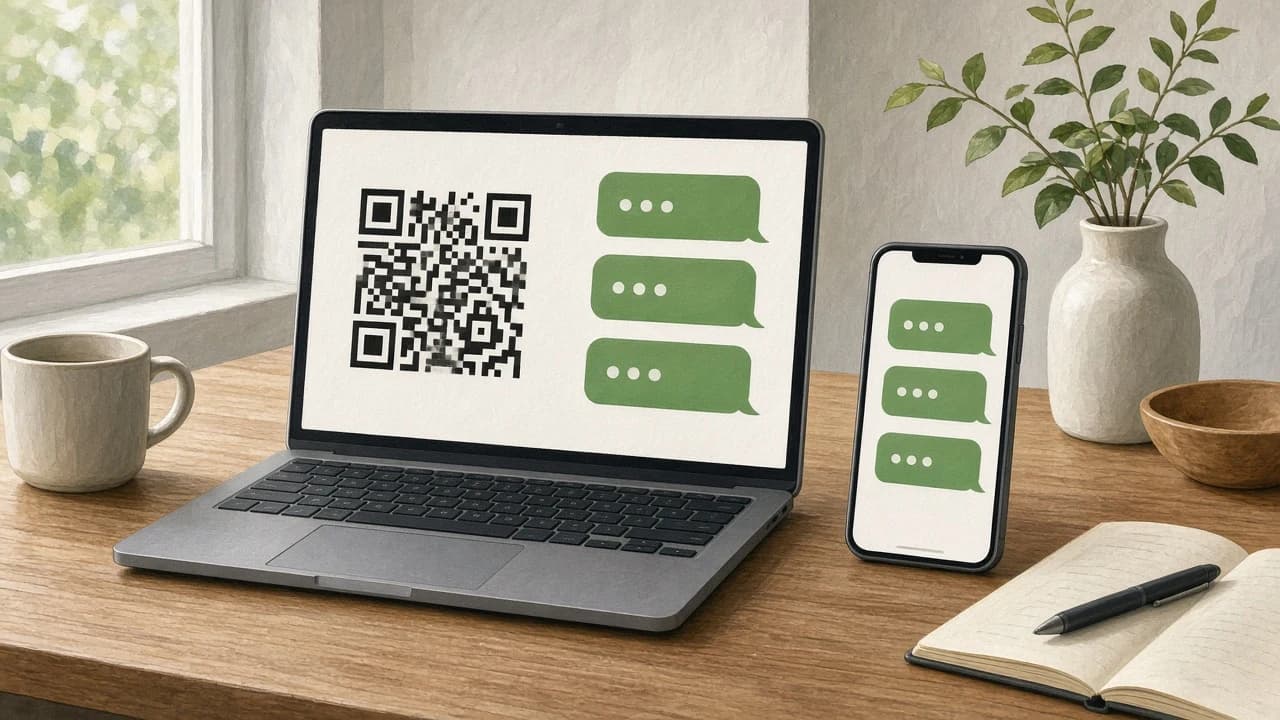
WhatsApp on Windows is a desktop window onto an account the phone already registered. The PC does not create the account, and it does not replace the phone. You install the app, leave the QR code on screen, and on the phone open Linked devices to scan it. The catalog entry is WhatsApp Messenger for Windows. Softcoria does not host the installer. The current official Windows path is the Microsoft Store, reached from WhatsApp’s desktop download page.
That path is narrower than a web search. This guide does not describe a direct executable as the official Windows install. If a download is not the Store app behind that desktop page, do not run it. How to Safely Download and Install Software on Windows is the general habit: know the publisher before you click. How to Check if a Windows Program Is Safe is the review to use when a file that merely uses the WhatsApp name shows up in Downloads.
The phone owns the account
Registration happens on the phone. The desktop app joins afterward as a linked device. WhatsApp allows up to four linked devices on the account. A home PC and a laptop can both be linked, and two further devices can follow, but a fifth has to wait until you remove one. Removal signs that device out. It does not delete the account on the phone, and it does not erase the chats that belong to the account.
Linking is a scan, not a password you type into Windows. The desktop shows a QR code. The phone reads it from Linked devices. Until the scan finishes, Windows is an empty client. The phone has to be online for that scan. If the phone has no Wi-Fi and no mobile data, the QR step fails even when the Store install is fine. Treat that as a phone connection problem. Reinstalling Windows software will not put a signal back on the phone.
The version number that gates the Store
Two official sentences name a minimum, and they do not name the same one. WhatsApp’s FAQ says the desktop app wants Windows 10 64-bit, version 1903 or later. The Microsoft Store listing says Windows 10 version 19041.0 or higher. Both lines are published. They are not two ways of writing one number.
A PC can satisfy a loose reading of “1903 or later” and still sit below 19041.0. The Store is what hands out the app, so the listing is the check that matters when you click Get. If Get is missing, or the Store says the device is not supported, the FAQ wording does not unlock the button. Open Settings > System > About and read the version on that screen. Compare it with 19041.0 before you spend time on a QR code the app will never show.
The FAQ also says 64-bit. A 32-bit Windows 10 PC is outside that line even if the version number looks new. About shows the system type. Neither the FAQ nor the Store listing publishes an ARM-specific package.
Install from the Store, then stop
Open the desktop download page and continue into the Microsoft Store. Install WhatsApp the way you install any other Store app: Get, wait until it finishes, then Open. Sign in to the Store if Windows asks. There is no product key and no setup file you are supposed to keep in Downloads.
The first window should be a QR code, not an inbox and not a form that creates an account on the PC alone. If a window offers a Windows-only signup and never mentions the phone, you are outside the official desktop flow. Close it and start again from the desktop download page.
- Install the app from the Microsoft Store.
- Open it and leave the QR code visible.
- On the phone, open WhatsApp, then Linked devices.
- Scan the code that is on the screen now.
- Send a test message to a chat you already have.
- Start a call once that message appears on both screens.
WhatsApp Web is a different client
WhatsApp Web runs in the browser. It also uses a QR code, and the phone is still the account, but it is not the desktop app. A working browser tab does not prove the Store will offer the install. If the Store refuses the PC — a Windows version older than 19041.0, or a 32-bit system — use WhatsApp Web. Do not hunt for an executable. The official desktop path is the Store.
Scan, send a test, then call
On the phone, Linked devices is the list of desktops and browsers already attached. Open it before you scan so you can see the count. If four entries are already there, remove one you recognize as unused, then scan. A photo of an earlier code will not do. The desktop refreshes the code. Scan the one on screen while the phone is unlocked and online.
When the link works, the chat list replaces the QR screen. Open a conversation you know and check that the latest lines match the phone. Then send a short test. It should show in that same chat on the phone. If it shows on only one screen, the scan did not finish or the phone is on a different account. Confirm this computer appears in Linked devices before you change any Windows setting.
A voice call needs a microphone. A video call needs a camera as well. The app cannot substitute for hardware you do not have. Use a headset if you prefer, or the built-in mic if Windows already records from it. Start with voice in the chat you just used. If you can hear the other side and they can hear you, try video. A black picture with working audio points at the camera, not at the account.
Windows can deny the microphone or the camera to desktop apps after the link succeeds. On Windows 11, open Settings > Privacy & security and allow microphone access and camera access for desktop apps. On Windows 10 the same switches live under Settings > Privacy. If they are off, chats can still work while every call fails. Fix the permission, then call again.
Alerts are a Windows choice
A linked PC stays quiet when Windows blocks notifications for the app, even though the message is already in the chat. Open Settings > System > Notifications on Windows 11, or Settings > System > Notifications & actions on Windows 10, and find WhatsApp. If the app is not allowed to show banners, you will only notice messages when the window is open. Do not disturb, Focus assist, and a quiet-hours schedule hide banners for many programs at once. A full-screen game or a presentation can do the same.
Failures that look like a bad install
- The Store will not offer the app. The PC is below Windows 10 version 19041.0, or it is not a 64-bit system the listing accepts. Use WhatsApp Web. Do not switch to a random executable.
- The QR code will not scan. The phone is offline, the code is stale, or Linked devices already shows four devices. Reconnect the phone, remove an old device if you are at the cap, and scan the current code.
- The chat list never appears. The scan did not complete. Stay on the QR screen until chats replace it. Confirm you scanned with the phone that holds the account you expect.
- Messages arrive only when the window is open. Windows notifications for WhatsApp are off, or a focus mode is hiding banners.
- The call has no audio. There is no working microphone, or Windows privacy settings are blocking it.
- Video stays black. Audio can be fine while the camera is missing or blocked. Video needs a camera on top of the microphone.
- You wanted a fifth device. Four is the cap. Unlink one device from the phone, then link the new computer.
Reinstall from the Store only when the app will not open or the QR screen never appears. A new install does not raise Windows to version 19041.0 and does not add a fifth device slot. Chats stay on the phone. On a borrowed PC, remove that computer from Linked devices when you are finished.
FAQ
Where do I install WhatsApp for Windows?
From the Microsoft Store, which you open from WhatsApp’s desktop download page. Softcoria does not host the installer. A direct executable is not the current official Windows path described here.
Which Windows version does the desktop app require?
The WhatsApp FAQ says Windows 10 64-bit, version 1903 or later. The Store listing says Windows 10 version 19041.0 or higher. The Store is the install path, so 19041.0 is the floor that decides whether Get is offered.
Can I register WhatsApp on the PC alone?
No. The phone registers the account. The desktop app is a linked device. You scan a QR code from Linked devices on the phone. Without that phone, the PC has nothing to join.
How many devices can I link?
Up to four linked devices. If Linked devices already lists four, remove one on the phone before you scan the new computer. Removing a device signs that device out. It does not delete the account.
Why does the QR code fail?
The usual cause is a phone that is offline. Unlock it, reconnect Wi-Fi or mobile data, and scan the code currently on the desktop. A full list of four linked devices also blocks a new scan until you remove one.
Why is there no call audio, video, or notification?
A voice call needs a microphone. Video needs a camera as well. Windows privacy settings can block both. Banners depend on Windows notification settings for the app, including Do not disturb and Focus assist.
On this site
- WhatsApp Messenger for Windows — the Softcoria page. The installer itself is the Microsoft Store listing.
- How to Safely Download and Install Software on Windows — what to confirm before you run an unfamiliar setup.
- How to Check if a Windows Program Is Safe — how to treat a file that only borrows the name.
- Internet — the category page for related Windows software.
Related guides
View all →Windows 10 LTS Explained: What LTSC Is, When Support Ends, and Who Should Use It
Editorial Team · Oct 25, 2026

Is Download.it Safe? What to Check Before You Download Anything
Download.it is not automatically unsafe, but it is not automatically safe either. Check the exact domain, publisher and installer before you download anything.
Editorial Team · Oct 24, 2026
What Is a RAR File? A Plain-English Guide for Windows Users
Editorial Team · Oct 24, 2026
Install BlueStacks 5, Turn On Virtualization, and Open an Android App
Download BlueStacks 5 only from the official site, install it as an administrator, check virtualization, sign in to Google Play if you want it, and launch one Android app.
Editorial Team · Oct 23, 2026