


How to verify a downloaded installer
Confirm the page, compare SHA-256, read the signature status, and only then run setup on Windows 10 or 11.
By Maya Chen · Sep 16, 2026
Every installer on this catalog ships with a published size and SHA-256. Treat those fields as part of the download, not as optional footnotes.
1. Confirm the page before you click
Open the program page from search or a category, not from a random redirect. Check the program name, current version, and that the download button is labeled for that build.
2. Compare the hash after the file lands
Once the file is on disk, hash it with PowerShell:
Get-FileHash .\program-setup.exe -Algorithm SHA256The hex string should match the SHA-256 on the program page. Archive tools such as 7-Zip help you inspect paths inside zip packages before you extract them.
3. Read the signature status
A signed installer is not a guarantee of quality, but an unexpected unsigned executable deserves a second look—especially when the publisher usually ships signed builds.
4. Install with a narrow path
For USB writers such as Rufus, confirm the target drive letter twice. Keep a second-opinion scanner like Malwarebytes available, and capture screenshots of setup dialogs with ShareX if you need a paper trail.
Verification is cheap. Cleaning a compromised user profile is not.
For publisher identity, SmartScreen warnings, and a Windows Security scan, continue with How to Check if a Windows Program Is Safe Before Installing It.
Related guides
View all →Windows Update Assistant: How to Download and Use It to Update Windows 10
Windows Update Assistant installs the newest Windows 10 feature update when Settings will not offer it. Download it safely from Microsoft, pass the compatibility check, and finish the upgrade step by step — plus the checks to run before and after.
Editorial Team · Oct 16, 2026
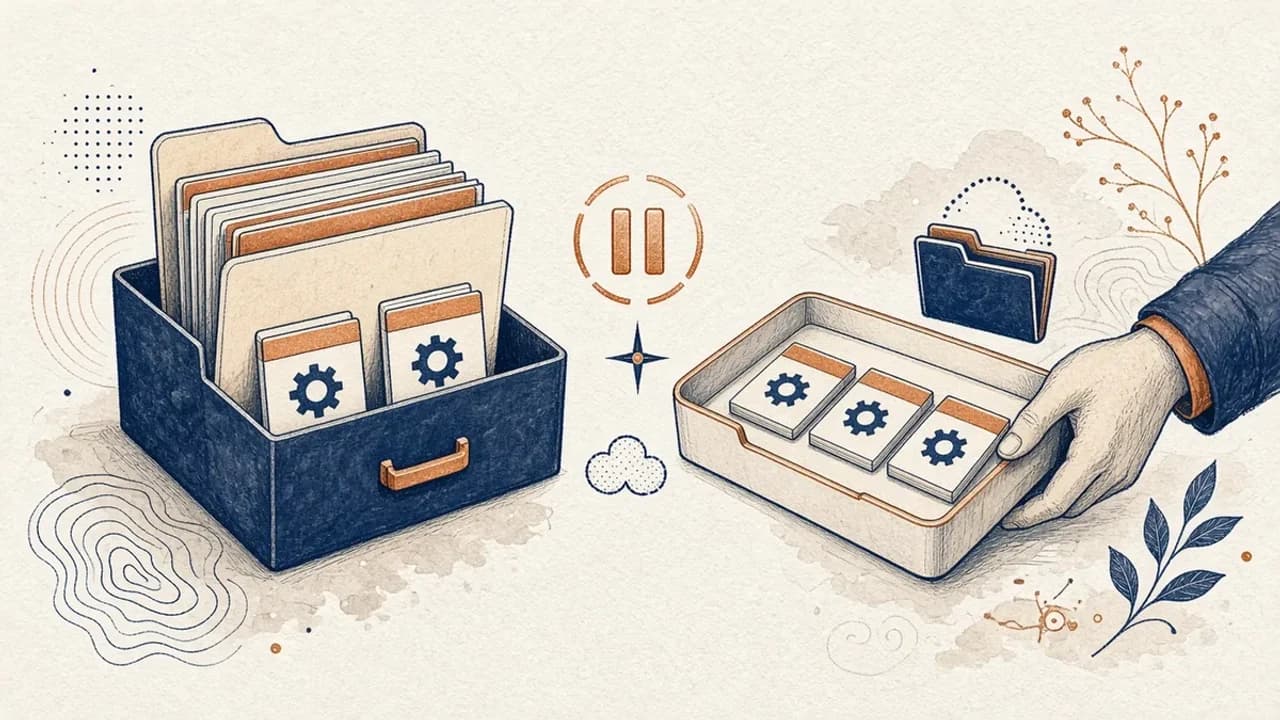
PatchCleaner Guide: How to Manage Windows Installer Files Safely
What HomeDev’s PatchCleaner 1.4.2.0 actually compares in C:\Windows\Installer, why Move is safer than Delete, and what the 2016 release does not claim.
Editorial Team · Oct 10, 2026
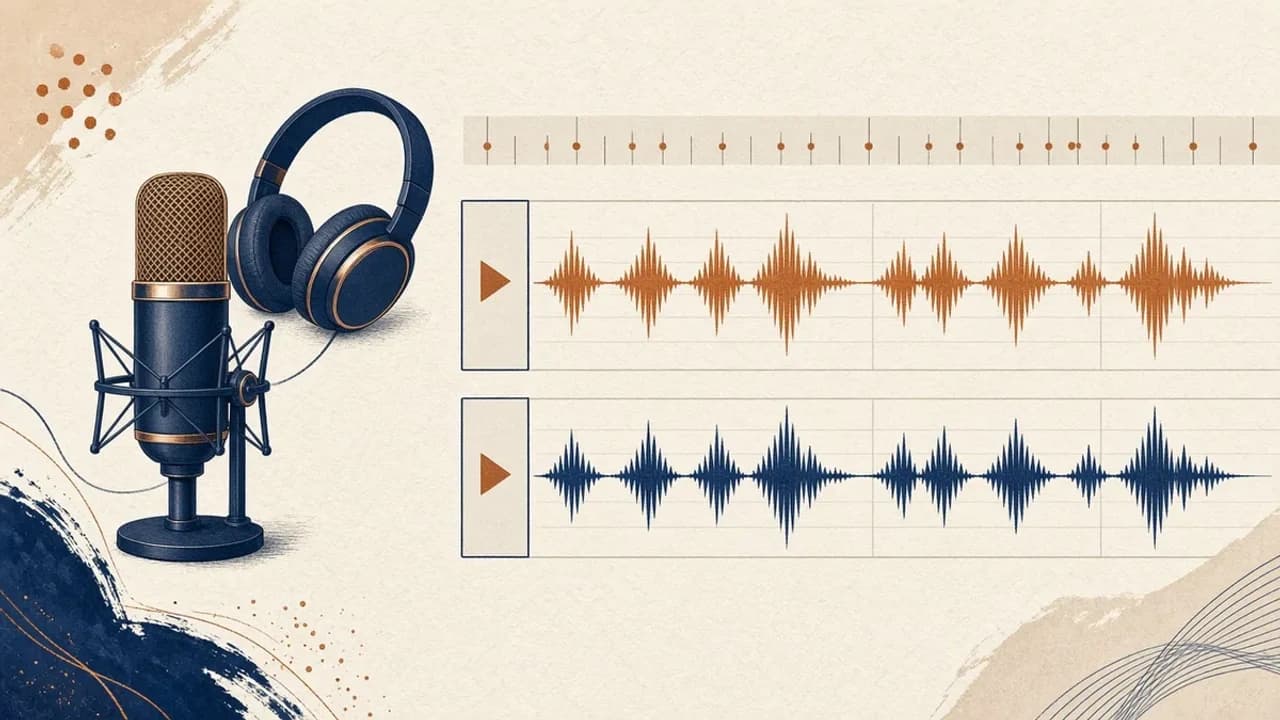
Audacity for Beginners: How to Record and Edit Audio on Windows
Install Audacity 4 from the official Windows page, pick a microphone, record a take, trim it, and export a file — using the labels in the current Audacity manual.
Editorial Team · Oct 10, 2026
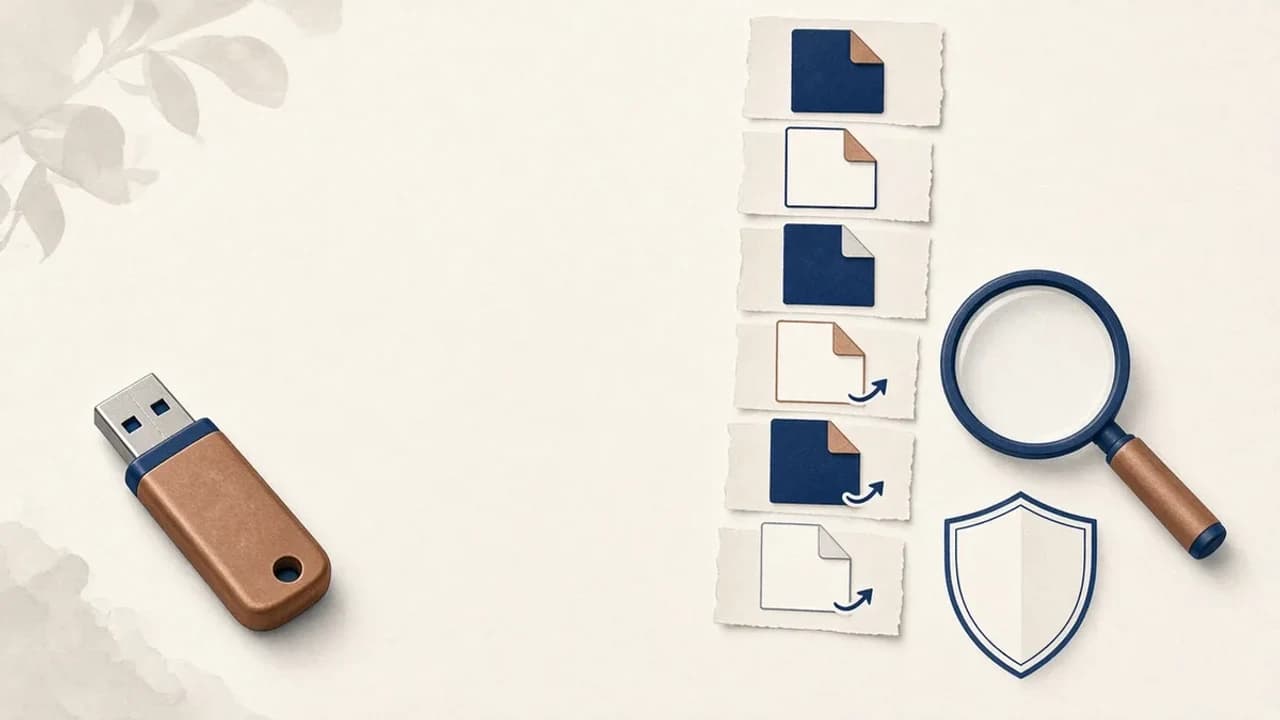
How to Remove Shortcut Viruses from USB Drives on Windows
A practical path for a USB stick that shows shortcuts instead of your files: protect the data, check Windows, and use Shortcut Virus Remover only for what its publisher actually documents.
Editorial Team · Oct 10, 2026