
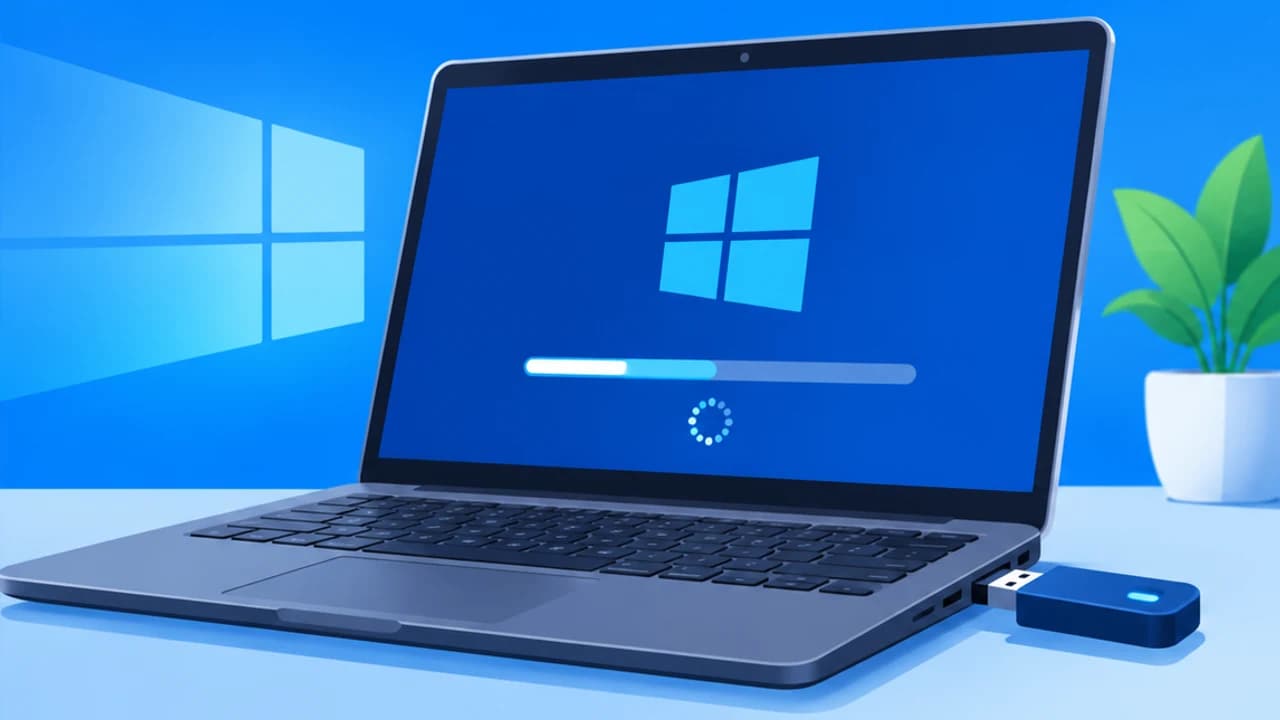

Windows 10 Clean Install: A Step-by-Step Guide
By Editorial Team · Nov 1, 2026
A Windows 10 clean install replaces your existing Windows installation with a fresh copy. It can resolve persistent software problems, remove many types of malware, and give you a fresh start. However, it also removes personal files, installed applications, and settings from the drive you erase. This guide explains how to prepare a bootable USB, install Windows 10, activate it, and restore your files without accidentally wiping the wrong drive.
A clean install is useful for serious Windows problems, but it isn't always the best first step.
Windows 10 reached end of support on October 14, 2025, so standard free security updates, feature updates, and technical support have ended. Eligible personal-use devices running Windows 10 version 22H2 can receive critical and important security updates through the Consumer Extended Security Updates (ESU) program until October 12, 2027, but ESU does not provide new features or general technical support. Read our Windows 10 support end guide (https://softcoria.com/guides/when-does-windows-10-support-end-dates-esu-and-what-to-do-now/) for more details.
Before deleting anything, check these three things. They can prevent some of the most frustrating problems during a Windows 10 clean install.
If BitLocker or device encryption is enabled, save your 48-digit recovery key somewhere outside the PC before making changes to its partitions. The recovery key lets you unlock an encrypted drive if Windows cannot unlock it automatically. You may need it to access another encrypted volume or recover files you intend to keep. Suspending BitLocker is not a substitute for saving the key. Suspension temporarily pauses protection; it does not decrypt the drive or preserve files when you delete its partitions.
After installation, Windows might not immediately recognize your Wi-Fi or Ethernet adapter. Without a working network connection, downloading missing drivers becomes more difficult. Visit your PC manufacturer's official support website and download the correct network drivers for your model. Copy them to the installation USB after creating it, or use a separate USB drive. Also check whether your PC needs a special storage controller driver before Windows Setup can detect its SSD.
Your Windows installation must match the edition covered by your license. To check your current edition:
Write down whether you have Windows 10 Home or Pro. Installing the wrong edition can prevent automatic activation. You can read more in our Windows 10 editions guide (https://softcoria.com/guides/windows-10-editions-home-vs-pro-features-and-which-to-choose-in-2026/).
Prepare these items before starting:
Microsoft recommends a blank USB drive with at least 8 GB of space for its Media Creation Tool.
First, turn your USB flash drive into a bootable Windows 10 installer.
The tool downloads the necessary Windows files and prepares the USB drive. Wait until it confirms that the installation media is ready. Double-check the selected USB drive before continuing because the creation process deletes its existing contents.
With the installation USB ready, connect it to the PC where you want to install Windows 10.
Alternative method: When Windows still starts normally, you can use its built-in recovery menu:
The computer should restart using the installation media. The exact boot procedure can vary by hardware manufacturer.
Once Windows Setup loads, follow these steps carefully.
Select your preferred language, time and currency format, and keyboard layout. Select Next to continue.
2. Start Installation
Select Install now.
3. Handle the Product Key Screen
When Windows asks for a product key:
If this PC previously had an activated digital license for the same edition, select I don't have a product key.If you have a valid product key, enter it when requested.
A previously activated PC can normally reactivate automatically after reinstalling the same Windows edition on the same hardware and connecting to the internet.
4. Select the Correct Edition
Choose Windows 10 Home or Pro, depending on the license you checked earlier. Do not select a different edition simply because it appears in the list. A license for Home does not activate Pro, and the reverse is also true.
5. Choose the Custom Installation
Accept the license terms and select: Custom: Install Windows only (advanced). This option lets you select the drive and partitions for the new installation.
6. Delete the Old Windows Partitions
You will now see a list of available drives and partitions. Find the physical drive where Windows is currently installed. Identify it using its capacity and other available drive information. Select each partition belonging to that target drive and choose Delete. Continue until the entire target drive appears as Unallocated Space. For example, it might show: Drive 0 Unallocated Space. Your drive might have a different number, depending on how the PC detects its storage devices.
Important: Deleting a partition permanently removes its contents. Delete partitions only on the physical drive you intend to erase. Do not delete partitions on secondary drives containing backups or personal files.
7. Begin Installation
Select the unallocated space on your target drive and click Next. Windows Setup will create the partitions it needs and begin installing Windows 10 automatically. Your computer may restart several times. Let the process finish without switching off the PC.
Step 4 — Finish Setup and Activation
After Windows finishes installing, it launches the out-of-box experience (OOBE). This is where you configure your basic preferences and user account. Follow the on-screen instructions to select your region, keyboard layout, network connection, and account settings.
Choose Your Account Preferences
You can sign in with a Microsoft account or use a local account if the setup offers that option. For a local account, look for Offline account, followed by Limited experience, when those choices are available.
Review Privacy Settings
Windows 10 offers several privacy choices during initial setup.
Turn off optional diagnostic data if you do not want to share the additional information.Disable location access if you do not use location-based features.Turn off Tailored experiences if you do not want personalized tips and recommendations.
Required diagnostic data is still collected even when optional diagnostic data is disabled. The advertising ID is a separate setting. After reaching the desktop, open Settings → Privacy → General and turn off Let apps use advertising ID to make ads more interesting to you based on your app activity.
Check Windows Activation
A digital license associated with your PC's hardware can activate Windows automatically once the computer connects to the internet, provided you installed the correct edition. To check activation:
Open Settings.Select Update & Security.Open Activation.Check the activation status.
If Windows does not activate, confirm that you installed the correct edition. You can also use the Activation Troubleshooter to investigate the problem.
Step 5 — Drivers, Updates, Restore
Windows might work immediately after installation, but some devices may need additional drivers. Complete these tasks before returning to normal use.
Install Network and Hardware Drivers
If you do not have an internet connection, install the network driver you saved before wiping the PC. Then visit your PC manufacturer's official support website and check for missing drivers, particularly:
Chipset driversGraphics driversAudio driversWi-Fi and Ethernet driversStorage controller drivers
Avoid downloading drivers from unfamiliar third-party websites.
Run Windows Update
Open Settings → Update & Security → Windows Update and select Check for updates. Install the available updates, restart when required, and check again. Also review View optional updates for relevant driver updates. Repeat this process until no further applicable updates are offered.
Restore Your Files and Applications
Once Windows and the necessary drivers are working:
Connect your backup drive or access your cloud storage.Restore your personal files.Reinstall the applications you actually use.Sign back into your browser and other accounts.Reconnect printers, external drives, and other peripherals.
Install applications using their official websites or trusted distribution sources.
When the USB Won't Boot — Troubleshooting
A USB installer can fail to start for several reasons. Try these checks before recreating the installation media.
The USB drive does not appear in the boot menu: Try another USB port, preferably a USB 2.0 port if available. On desktop computers, a rear motherboard USB port is also worth trying.The computer skips the USB: Check the BIOS/UEFI boot order and confirm that USB booting is enabled. You can also check whether BIOS Fast Boot is preventing the USB device from being detected in time.UEFI or Secure Boot problems: Check the boot mode and Secure Boot settings against your computer manufacturer's instructions. Use the UEFI USB entry when installing in UEFI mode. Do not randomly switch between UEFI and Legacy/CSM settings because this can create additional boot and partition compatibility problems.The installer reports "We couldn't create a new partition": Return to the drive selection screen and verify that you selected the correct physical drive. Recheck the partition instructions in Step 3, remove the existing partitions on the intended target drive, and select its unallocated space. Do not use this procedure on a drive containing files you want to preserve.The Media Creation Tool fails: Try downloading the official Windows 10 ISO from Microsoft's download page instead. You can use Rufus, a separate third-party utility, to write the ISO to a USB drive. Download Rufus from its official website and check its settings before creating the installer.
Clean Install Myths, Debunked
There are several misconceptions about reinstalling Windows that can lead to unnecessary work or data loss.
A clean install always fixes a slow PC: Not necessarily. A failing SSD, overheating processor, thermal throttling, or other hardware problems can cause poor performance even after Windows is reinstalled.You must delete every drive: No. You only need to remove partitions on the physical drive selected for Windows. Other storage drives should remain untouched.Reset this PC and a clean install are identical: They both reinstall Windows, but they use different procedures and offer different recovery options.A clean install removes every virus: It removes many ordinary infections located in the erased Windows installation. However, it does not reliably remove firmware or UEFI-level infections, and infected files can reintroduce malware later.Any Windows ISO is safe: Never install Windows from an unfamiliar download website or modified ISO. Use Microsoft's official download page. When Microsoft publishes a SHA-256 checksum for the exact ISO you downloaded, compare it with the calculated checksum. Do not assume Microsoft's general reinstall guide provides one universal hash for every Windows 10 ISO. See Microsoft's official installation instructions (https://support.microsoft.com/en-us/windows/reinstall-windows-with-the-installation-media-d8369486-3e33-7d9c-dccc-859e2b022fc7).
Alternatives
A USB clean install is not the only way to reinstall Windows 10. Depending on the problem, one of these alternatives may be more convenient.
Reset This PC
Windows 10 has a built-in reset feature that does not require a separate installation USB. Open: Settings → Update & Security → Recovery → Reset this PC → Get started. Choose Remove everything, then select Cloud download. Cloud download obtains a fresh Windows copy over the internet rather than relying on the existing local installation files. Check the available reset options carefully. If Restore preinstalled apps is enabled, manufacturer customizations and applications may be applied again.
In-Place Reinstall Using setup.exe
Another option is to start Windows normally, connect your installation USB, and open its contents in File Explorer. Run setup.exe and follow the installation instructions. Under Change what to keep, select Keep nothing. This removes your personal files, installed applications, and settings while reinstalling Windows. However, it is an in-place installation rather than a booted USB installation that lets you delete and recreate the target drive's partitions.
FAQ
Will I Lose My Files During a Windows 10 Clean Install?
Yes. A clean install that deletes the Windows drive's partitions removes the files stored on that drive. This includes documents, photos, installed applications, and personal settings. Back up important data before starting. Other physical drives will remain untouched as long as you select the correct installation drive.
Do I Need to Buy Windows Again?
Usually not. If the PC already has a valid Windows 10 digital license, reinstalling the same edition on the same hardware normally allows automatic activation once you connect to the internet. A different Windows edition or significant hardware change can require additional activation steps.
How Long Does a Clean Install Take?
The installation itself often takes around 30–90 minutes, depending on your PC's hardware, storage speed, and USB connection. Downloading updates, installing drivers, and restoring files will add more time. Keep the computer connected to power throughout the process.
Does a Clean Install Remove Viruses?
It removes many ordinary malware infections stored in the Windows installation and its erased partitions. However, it cannot guarantee removal of firmware-level infections or malware stored elsewhere. See the limitations discussed under Clean Install Myths, Debunked.
Clean Install vs. Reset: Which Is Better?
Choose Reset this PC for a convenient built-in reinstall without creating a USB drive. Choose a clean install when you need to start from installation media and replace the existing Windows partitions yourself. See the Alternatives section for the differences.
Final Checklist
Before starting your Windows 10 clean install, make sure every item is ready:
Backup verified: Your important files are copied to an external drive or cloud storage, and you have checked that the backup works.BitLocker key saved: Your recovery key is accessible outside the computer.USB ready: Your bootable Windows 10 installation drive is prepared.Edition matched: You know whether your license covers Windows 10 Home or Pro.Network driver saved: Your PC's Wi-Fi or Ethernet driver is available on the USB or another storage device.
Once these checks are complete, you can proceed with the installation. Take particular care when selecting and deleting drive partitions, because that is the stage where accidental data loss is most likely.
Do You Really Need a Clean Install?
A clean install is useful for serious Windows problems, but it isn't always the best first step.
- Slow PC: Try Disk Cleanup, uninstall unnecessary programs, and review startup apps first. Check your drive's health if performance remains poor.
- Malware infection: Consider a clean install if malware persists or you cannot trust the existing Windows installation.
- Selling the PC: Perform a clean install and remove the device from your Microsoft account and other connected accounts. Use an appropriate drive-erasure method if you need to protect data from recovery.
- Stubborn driver problems: A clean install can help when corrupted drivers or software conflicts persist after normal troubleshooting.
- Just want a refresh: Consider Reset this PC instead. It provides a built-in way to reinstall Windows without creating installation media.
A Quick Note on Windows 10 End of Support
Windows 10 reached end of support on October 14, 2025, so standard free security updates, feature updates, and technical support have ended. Eligible personal-use devices running Windows 10 version 22H2 can receive critical and important security updates through the Consumer Extended Security Updates (ESU) program until October 12, 2027, but ESU does not provide new features or general technical support. Read our Windows 10 support end guide (https://softcoria.com/guides/when-does-windows-10-support-end-dates-esu-and-what-to-do-now/) for more details.
Before You Start — 3 Things That Strand Beginners
Before deleting anything, check these three things. They can prevent some of the most frustrating problems during a Windows 10 clean install.
1. Save Your BitLocker Recovery Key
If BitLocker or device encryption is enabled, save your 48-digit recovery key somewhere outside the PC before making changes to its partitions. The recovery key lets you unlock an encrypted drive if Windows cannot unlock it automatically. You may need it to access another encrypted volume or recover files you intend to keep. Suspending BitLocker is not a substitute for saving the key. Suspension temporarily pauses protection; it does not decrypt the drive or preserve files when you delete its partitions.
2. Download Your Network Drivers Before Wiping
After installation, Windows might not immediately recognize your Wi-Fi or Ethernet adapter. Without a working network connection, downloading missing drivers becomes more difficult. Visit your PC manufacturer's official support website and download the correct network drivers for your model. Copy them to the installation USB after creating it, or use a separate USB drive. Also check whether your PC needs a special storage controller driver before Windows Setup can detect its SSD.
3. Know Your Windows Edition
Your Windows installation must match the edition covered by your license. To check your current edition:
- Open Settings.
- Select System → About.
- Find the Windows specifications section.
- Check the Edition entry.
Write down whether you have Windows 10 Home or Pro. Installing the wrong edition can prevent automatic activation. You can read more in our Windows 10 editions guide (https://softcoria.com/guides/windows-10-editions-home-vs-pro-features-and-which-to-choose-in-2026/).
What You Need
Prepare these items before starting:
- USB flash drive: At least 8 GB of storage. Creating installation media will erase its existing contents.
- A second working PC: Use it to download Windows and create the installation USB.
- A backup: Copy important documents, photos, videos, browser data, and other personal files to an external drive or cloud storage. Verify that the backup opens correctly.
- Stable power: Keep a desktop connected to reliable power or connect a laptop to its charger throughout installation.
Microsoft recommends a blank USB drive with at least 8 GB of space for its Media Creation Tool.
Step 1 — Create the Installation Media
First, turn your USB flash drive into a bootable Windows 10 installer.
- On the working PC, open Microsoft's official Download Windows 10 page (https://www.microsoft.com/software-download/windows10).
- Find the section for creating Windows 10 installation media.
- Select Download Now to download the Media Creation Tool.
- Open the downloaded tool. Allow it to make changes if Windows asks.
- Accept the license terms.
- Choose Create installation media for another PC and select Next.
- Choose the appropriate language, Windows 10 edition, and architecture. Most modern PCs use 64-bit Windows.
- Select USB flash drive as the media type.
- Choose your USB drive from the list and continue.
The tool downloads the necessary Windows files and prepares the USB drive. Wait until it confirms that the installation media is ready. Double-check the selected USB drive before continuing because the creation process deletes its existing contents.
Step 2 — Boot From the USB
With the installation USB ready, connect it to the PC where you want to install Windows 10.
- Leave the USB connected.
- Restart the computer.
- Open the boot menu using the key specified by your PC manufacturer. The key varies by manufacturer and model, so check the manufacturer's support instructions rather than assuming one universal key.
- Alternatively, enter BIOS/UEFI and change the boot order to start from the USB drive.
- When multiple USB entries appear, select the one marked UEFI if you are installing in UEFI mode.
- Wait for the Windows Setup screen to appear.
Alternative method: When Windows still starts normally, you can use its built-in recovery menu:
- Open Settings → Update & Security → Recovery.
- Under Advanced startup, select Restart now.
- Choose Use a device.
- Select your USB storage device.
The computer should restart using the installation media. The exact boot procedure can vary by hardware manufacturer.
Step 3 — Run Windows Setup
Once Windows Setup loads, follow these steps carefully.
1. Choose Your Language and Keyboard
Select your preferred language, time and currency format, and keyboard layout. Select Next to continue.
2. Start Installation
Select Install now.
3. Handle the Product Key Screen
When Windows asks for a product key:
If this PC previously had an activated digital license for the same edition, select I don't have a product key.If you have a valid product key, enter it when requested.
A previously activated PC can normally reactivate automatically after reinstalling the same Windows edition on the same hardware and connecting to the internet.
4. Select the Correct Edition
Choose Windows 10 Home or Pro, depending on the license you checked earlier. Do not select a different edition simply because it appears in the list. A license for Home does not activate Pro, and the reverse is also true.
5. Choose the Custom Installation
Accept the license terms and select: Custom: Install Windows only (advanced). This option lets you select the drive and partitions for the new installation.
6. Delete the Old Windows Partitions
You will now see a list of available drives and partitions. Find the physical drive where Windows is currently installed. Identify it using its capacity and other available drive information. Select each partition belonging to that target drive and choose Delete. Continue until the entire target drive appears as Unallocated Space. For example, it might show: Drive 0 Unallocated Space. Your drive might have a different number, depending on how the PC detects its storage devices.
Important: Deleting a partition permanently removes its contents. Delete partitions only on the physical drive you intend to erase. Do not delete partitions on secondary drives containing backups or personal files.
7. Begin Installation
Select the unallocated space on your target drive and click Next. Windows Setup will create the partitions it needs and begin installing Windows 10 automatically. Your computer may restart several times. Let the process finish without switching off the PC.
Step 4 — Finish Setup and Activation
After Windows finishes installing, it launches the out-of-box experience (OOBE). This is where you configure your basic preferences and user account. Follow the on-screen instructions to select your region, keyboard layout, network connection, and account settings.
Choose Your Account Preferences
You can sign in with a Microsoft account or use a local account if the setup offers that option. For a local account, look for Offline account, followed by Limited experience, when those choices are available.
Review Privacy Settings
Windows 10 offers several privacy choices during initial setup.
Turn off optional diagnostic data if you do not want to share the additional information.Disable location access if you do not use location-based features.Turn off Tailored experiences if you do not want personalized tips and recommendations.
Required diagnostic data is still collected even when optional diagnostic data is disabled. The advertising ID is a separate setting. After reaching the desktop, open Settings → Privacy → General and turn off Let apps use advertising ID to make ads more interesting to you based on your app activity.
Check Windows Activation
A digital license associated with your PC's hardware can activate Windows automatically once the computer connects to the internet, provided you installed the correct edition. To check activation:
Open Settings.Select Update & Security.Open Activation.Check the activation status.
If Windows does not activate, confirm that you installed the correct edition. You can also use the Activation Troubleshooter to investigate the problem.
Step 5 — Drivers, Updates, Restore
Windows might work immediately after installation, but some devices may need additional drivers. Complete these tasks before returning to normal use.
Install Network and Hardware Drivers
If you do not have an internet connection, install the network driver you saved before wiping the PC. Then visit your PC manufacturer's official support website and check for missing drivers, particularly:
Chipset driversGraphics driversAudio driversWi-Fi and Ethernet driversStorage controller drivers
Avoid downloading drivers from unfamiliar third-party websites.
Run Windows Update
Open Settings → Update & Security → Windows Update and select Check for updates. Install the available updates, restart when required, and check again. Also review View optional updates for relevant driver updates. Repeat this process until no further applicable updates are offered.
Restore Your Files and Applications
Once Windows and the necessary drivers are working:
Connect your backup drive or access your cloud storage.Restore your personal files.Reinstall the applications you actually use.Sign back into your browser and other accounts.Reconnect printers, external drives, and other peripherals.
Install applications using their official websites or trusted distribution sources.
When the USB Won't Boot — Troubleshooting
A USB installer can fail to start for several reasons. Try these checks before recreating the installation media.
The USB drive does not appear in the boot menu: Try another USB port, preferably a USB 2.0 port if available. On desktop computers, a rear motherboard USB port is also worth trying.The computer skips the USB: Check the BIOS/UEFI boot order and confirm that USB booting is enabled. You can also check whether BIOS Fast Boot is preventing the USB device from being detected in time.UEFI or Secure Boot problems: Check the boot mode and Secure Boot settings against your computer manufacturer's instructions. Use the UEFI USB entry when installing in UEFI mode. Do not randomly switch between UEFI and Legacy/CSM settings because this can create additional boot and partition compatibility problems.The installer reports "We couldn't create a new partition": Return to the drive selection screen and verify that you selected the correct physical drive. Recheck the partition instructions in Step 3, remove the existing partitions on the intended target drive, and select its unallocated space. Do not use this procedure on a drive containing files you want to preserve.The Media Creation Tool fails: Try downloading the official Windows 10 ISO from Microsoft's download page instead. You can use Rufus, a separate third-party utility, to write the ISO to a USB drive. Download Rufus from its official website and check its settings before creating the installer.
Clean Install Myths, Debunked
There are several misconceptions about reinstalling Windows that can lead to unnecessary work or data loss.
A clean install always fixes a slow PC: Not necessarily. A failing SSD, overheating processor, thermal throttling, or other hardware problems can cause poor performance even after Windows is reinstalled.You must delete every drive: No. You only need to remove partitions on the physical drive selected for Windows. Other storage drives should remain untouched.Reset this PC and a clean install are identical: They both reinstall Windows, but they use different procedures and offer different recovery options.A clean install removes every virus: It removes many ordinary infections located in the erased Windows installation. However, it does not reliably remove firmware or UEFI-level infections, and infected files can reintroduce malware later.Any Windows ISO is safe: Never install Windows from an unfamiliar download website or modified ISO. Use Microsoft's official download page. When Microsoft publishes a SHA-256 checksum for the exact ISO you downloaded, compare it with the calculated checksum. Do not assume Microsoft's general reinstall guide provides one universal hash for every Windows 10 ISO. See Microsoft's official installation instructions (https://support.microsoft.com/en-us/windows/reinstall-windows-with-the-installation-media-d8369486-3e33-7d9c-dccc-859e2b022fc7).
Alternatives
A USB clean install is not the only way to reinstall Windows 10. Depending on the problem, one of these alternatives may be more convenient.
Reset This PC
Windows 10 has a built-in reset feature that does not require a separate installation USB. Open: Settings → Update & Security → Recovery → Reset this PC → Get started. Choose Remove everything, then select Cloud download. Cloud download obtains a fresh Windows copy over the internet rather than relying on the existing local installation files. Check the available reset options carefully. If Restore preinstalled apps is enabled, manufacturer customizations and applications may be applied again.
In-Place Reinstall Using setup.exe
Another option is to start Windows normally, connect your installation USB, and open its contents in File Explorer. Run setup.exe and follow the installation instructions. Under Change what to keep, select Keep nothing. This removes your personal files, installed applications, and settings while reinstalling Windows. However, it is an in-place installation rather than a booted USB installation that lets you delete and recreate the target drive's partitions.
FAQ
Will I Lose My Files During a Windows 10 Clean Install?
Yes. A clean install that deletes the Windows drive's partitions removes the files stored on that drive. This includes documents, photos, installed applications, and personal settings. Back up important data before starting. Other physical drives will remain untouched as long as you select the correct installation drive.
Do I Need to Buy Windows Again?
Usually not. If the PC already has a valid Windows 10 digital license, reinstalling the same edition on the same hardware normally allows automatic activation once you connect to the internet. A different Windows edition or significant hardware change can require additional activation steps.
How Long Does a Clean Install Take?
The installation itself often takes around 30–90 minutes, depending on your PC's hardware, storage speed, and USB connection. Downloading updates, installing drivers, and restoring files will add more time. Keep the computer connected to power throughout the process.
Does a Clean Install Remove Viruses?
It removes many ordinary malware infections stored in the Windows installation and its erased partitions. However, it cannot guarantee removal of firmware-level infections or malware stored elsewhere. See the limitations discussed under Clean Install Myths, Debunked.
Clean Install vs. Reset: Which Is Better?
Choose Reset this PC for a convenient built-in reinstall without creating a USB drive. Choose a clean install when you need to start from installation media and replace the existing Windows partitions yourself. See the Alternatives section for the differences.
Final Checklist
Before starting your Windows 10 clean install, make sure every item is ready:
Backup verified: Your important files are copied to an external drive or cloud storage, and you have checked that the backup works.BitLocker key saved: Your recovery key is accessible outside the computer.USB ready: Your bootable Windows 10 installation drive is prepared.Edition matched: You know whether your license covers Windows 10 Home or Pro.Network driver saved: Your PC's Wi-Fi or Ethernet driver is available on the USB or another storage device.
Once these checks are complete, you can proceed with the installation. Take particular care when selecting and deleting drive partitions, because that is the stage where accidental data loss is most likely.
Related guides
View all →

How to Mount an ISO File on Windows 10 and 11
Editorial Team · Oct 31, 2026
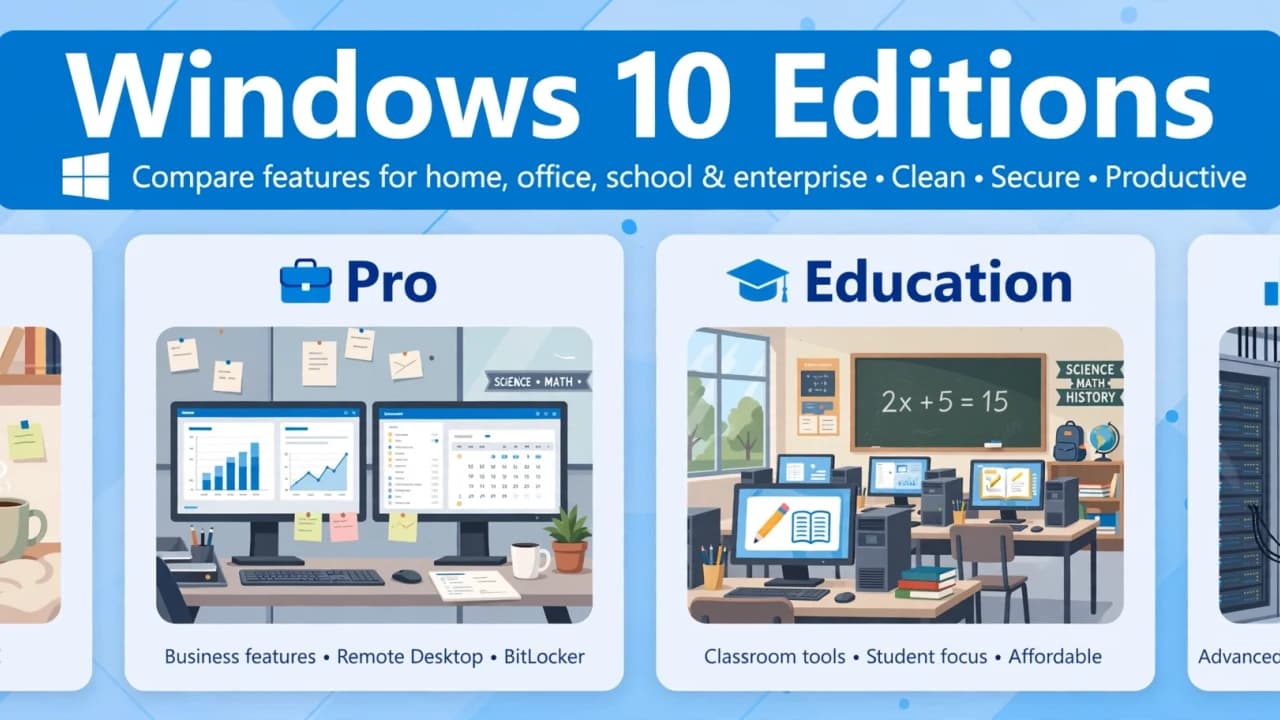

Windows 10 Editions: Home vs Pro, Features, and Which to Choose in 2026
Editorial Team · Oct 30, 2026

Is Freeware Safe? How to Tell Good Free Software from Risky Downloads
Editorial Team · Oct 29, 2026

What Is a File EXE? How Windows Executable Files Work, Run, and Stay Safe
Editorial Team · Oct 27, 2026