


Windows software installation guide
A calm install path for everyday Windows programs: download, verify, decline extras, and confirm the first launch.
By Jonas Reed · Sep 13, 2026
Most Windows installs fail for boring reasons: the wrong architecture, an unchecked toolbar offer, or a skipped reboot. A short checklist keeps everyday setups predictable.
1. Download from the labeled button
Use the download control on the Softcoria program page. Avoid mirrored “download now” ads that sit beside the article.
2. Verify, then run as a standard user when possible
Compare SHA-256 first. Prefer a standard user account; elevate only when the installer asks for administrator rights.
3. Read every optional checkbox
Decline browser, search-engine, and toolbar offers. Keep default paths unless you have a reason to change them.
4. Confirm the first launch
Open the Start menu entry once. For media work, launch VLC media player or OBS Studio and confirm the expected window. For development, open Visual Studio Code and Git for Windows, then verify git --version in a new terminal.
- Close leftover setup windows.
- Note the installed version on the About screen.
- Create a restore point before large suite installs when the PC is important.
The longer walkthrough — including UAC, architecture, and uninstall — is How to Safely Download and Install Software on Windows.
Related guides
View all →Windows Update Assistant: How to Download and Use It to Update Windows 10
Windows Update Assistant installs the newest Windows 10 feature update when Settings will not offer it. Download it safely from Microsoft, pass the compatibility check, and finish the upgrade step by step — plus the checks to run before and after.
Editorial Team · Oct 16, 2026
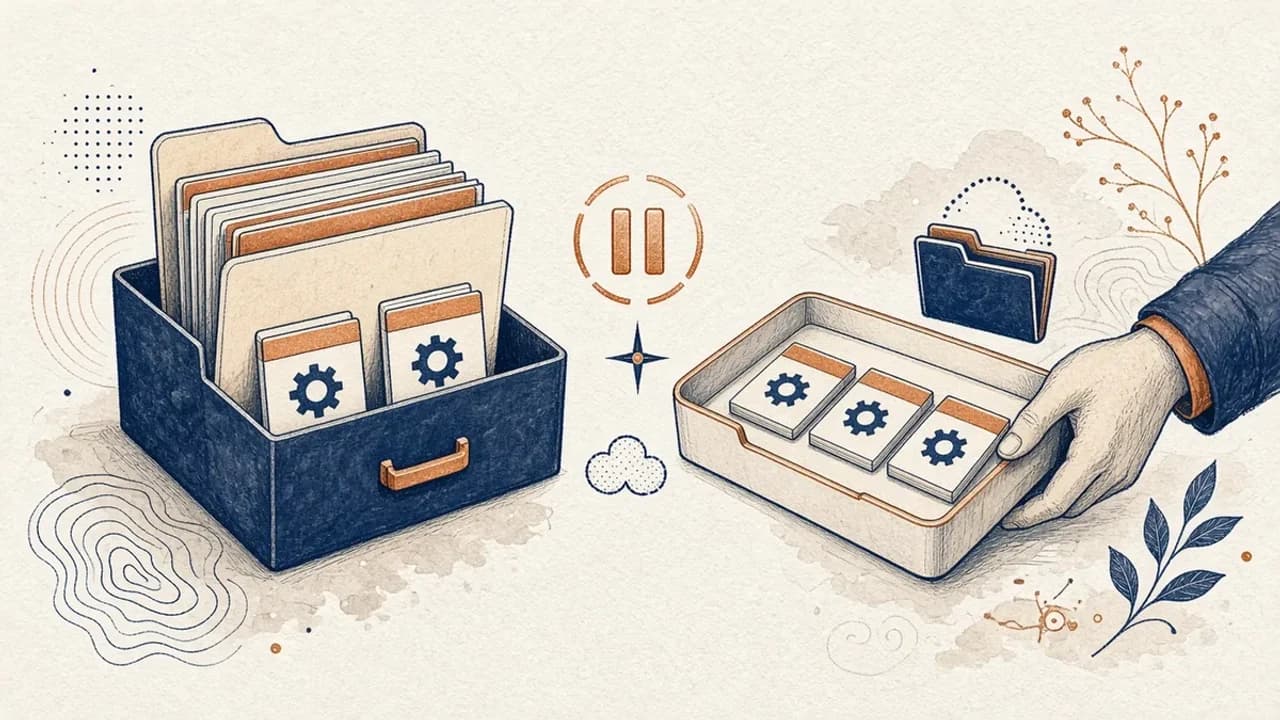
PatchCleaner Guide: How to Manage Windows Installer Files Safely
What HomeDev’s PatchCleaner 1.4.2.0 actually compares in C:\Windows\Installer, why Move is safer than Delete, and what the 2016 release does not claim.
Editorial Team · Oct 10, 2026
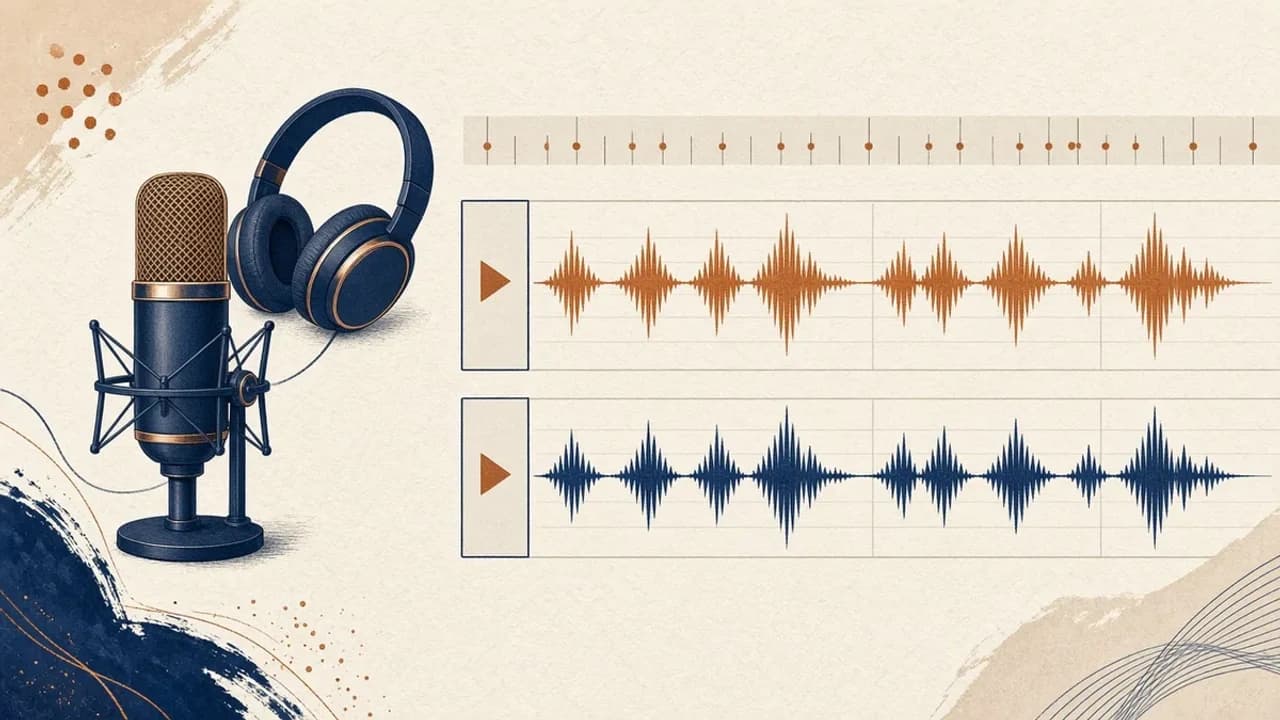
Audacity for Beginners: How to Record and Edit Audio on Windows
Install Audacity 4 from the official Windows page, pick a microphone, record a take, trim it, and export a file — using the labels in the current Audacity manual.
Editorial Team · Oct 10, 2026
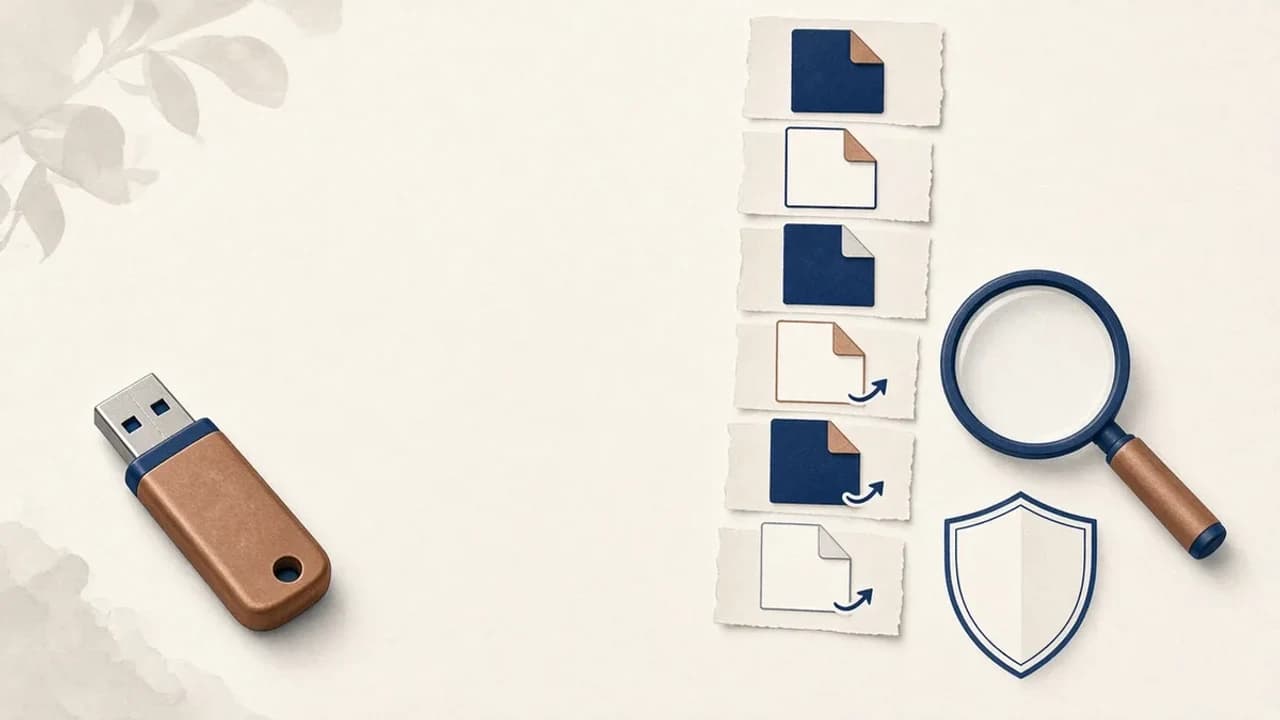
How to Remove Shortcut Viruses from USB Drives on Windows
A practical path for a USB stick that shows shortcuts instead of your files: protect the data, check Windows, and use Shortcut Virus Remover only for what its publisher actually documents.
Editorial Team · Oct 10, 2026