


Heruntergeladenen Installer prüfen
Seite bestätigen, SHA-256 vergleichen, Signaturstatus lesen und erst dann Setup unter Windows 10 oder 11 starten.
Von Maya Chen · Sep 16, 2026
Jeder Installer in diesem Katalog liefert Größe und SHA-256 mit. Behandeln Sie diese Felder als Teil des Downloads, nicht als Fußnote.
Every installer on this catalog ships with a published size and SHA-256. Treat those fields as part of the download, not as optional footnotes.
1. Confirm the page before you click
Open the program page from search or a category, not from a random redirect. Check the program name, current version, and that the download button is labeled for that build.
2. Compare the hash after the file lands
Once the file is on disk, hash it with PowerShell:
Get-FileHash .\program-setup.exe -Algorithm SHA256The hex string should match the SHA-256 on the program page. Archive tools such as 7-Zip help you inspect paths inside zip packages before you extract them.
3. Read the signature status
A signed installer is not a guarantee of quality, but an unexpected unsigned executable deserves a second look—especially when the publisher usually ships signed builds.
4. Install with a narrow path
For USB writers such as Rufus, confirm the target drive letter twice. Keep a second-opinion scanner like Malwarebytes available, and capture screenshots of setup dialogs with ShareX if you need a paper trail.
Verification is cheap. Cleaning a compromised user profile is not.
For publisher identity, SmartScreen warnings, and a Windows Security scan, continue with How to Check if a Windows Program Is Safe Before Installing It.
Verwandte Ratgeber
Alle anzeigen →Windows Update Assistant: How to Download and Use It to Update Windows 10
Editorial Team · Oct 16, 2026
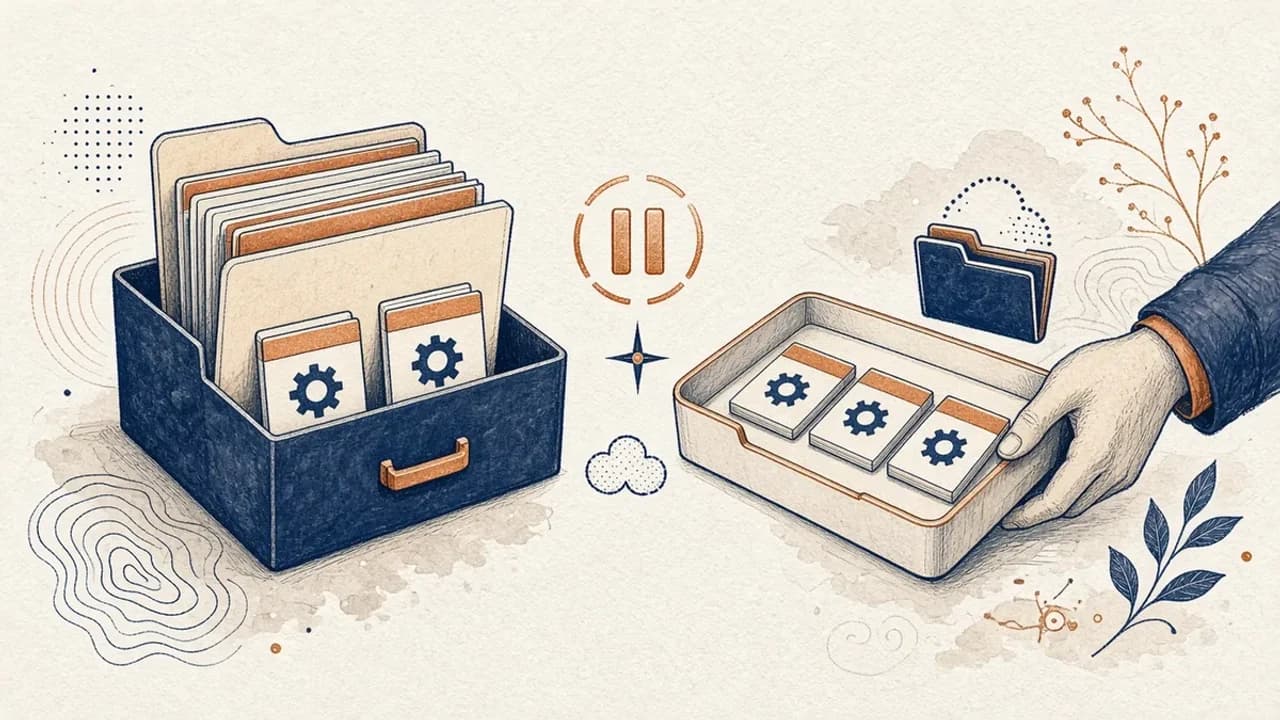
PatchCleaner: Windows-Installer-Dateien sicher verwalten
Was HomeDevs PatchCleaner 1.4.2.0 in C:\Windows\Installer wirklich vergleicht, warum Verschieben sicherer ist als Löschen, und was die Version von 2016 nicht behauptet.
Editorial Team · Oct 10, 2026
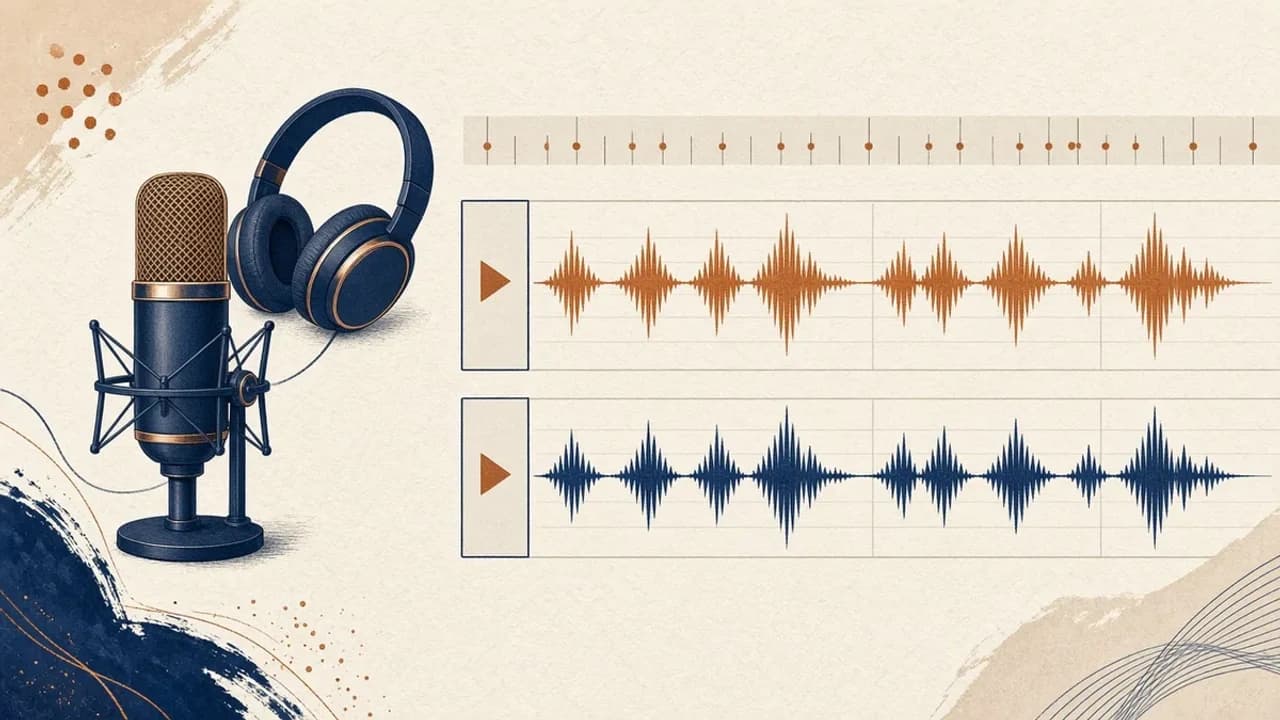
Audacity für Einsteiger: Audio unter Windows aufnehmen und schneiden
Audacity 4 von der offiziellen Windows-Seite installieren, Mikrofon wählen, eine Aufnahme schneiden und exportieren — mit den Bezeichnungen aus dem aktuellen Handbuch.
Editorial Team · Oct 10, 2026
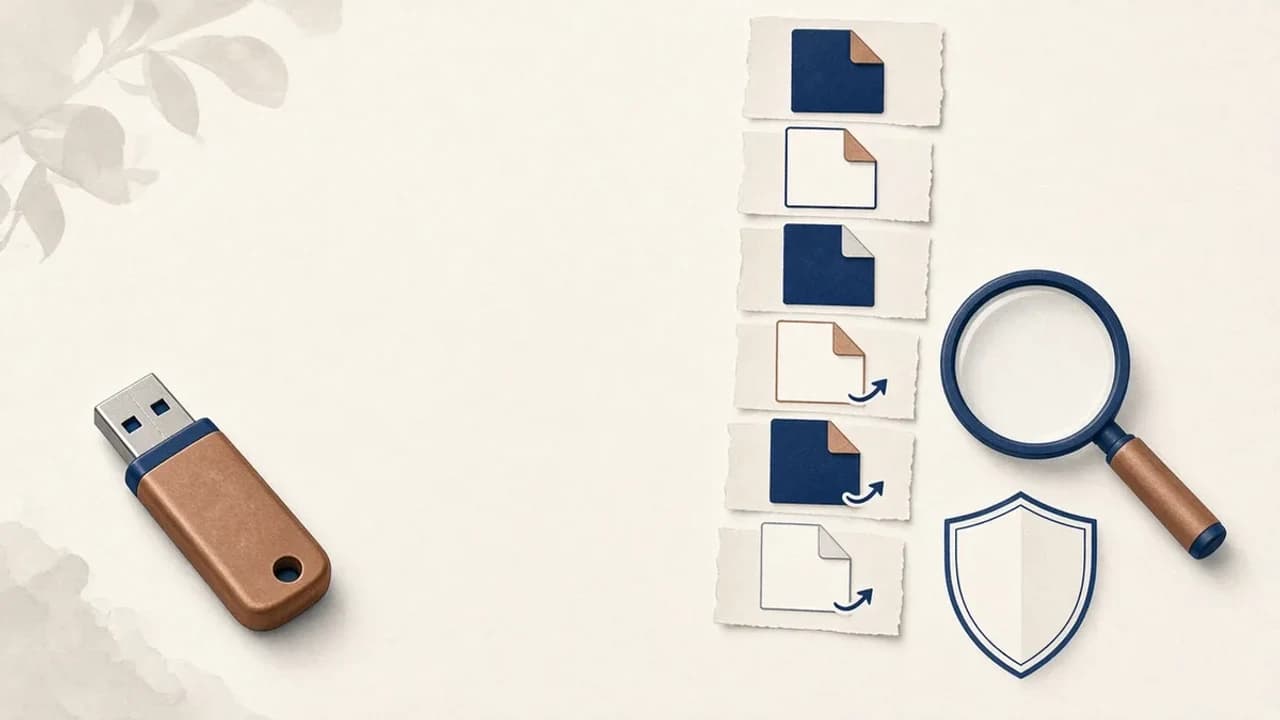
Shortcut-Viren von USB-Sticks unter Windows entfernen
Was tun, wenn ein USB-Stick Verknüpfungen statt Ihrer Dateien zeigt: Daten sichern, Windows prüfen und Shortcut Virus Remover nur für das einsetzen, was der Herausgeber belegt.
Editorial Team · Oct 10, 2026