


Vérifier un installateur téléchargé
Confirmez la page, comparez le SHA-256, lisez le statut de signature, puis seulement lancez le setup sous Windows 10 ou 11.
Par Maya Chen · Sep 16, 2026
Chaque installateur de ce catalogue publie une taille et un SHA-256. Traitez ces champs comme partie du téléchargement, pas comme notes optionnelles.
Every installer on this catalog ships with a published size and SHA-256. Treat those fields as part of the download, not as optional footnotes.
1. Confirm the page before you click
Open the program page from search or a category, not from a random redirect. Check the program name, current version, and that the download button is labeled for that build.
2. Compare the hash after the file lands
Once the file is on disk, hash it with PowerShell:
Get-FileHash .\program-setup.exe -Algorithm SHA256The hex string should match the SHA-256 on the program page. Archive tools such as 7-Zip help you inspect paths inside zip packages before you extract them.
3. Read the signature status
A signed installer is not a guarantee of quality, but an unexpected unsigned executable deserves a second look—especially when the publisher usually ships signed builds.
4. Install with a narrow path
For USB writers such as Rufus, confirm the target drive letter twice. Keep a second-opinion scanner like Malwarebytes available, and capture screenshots of setup dialogs with ShareX if you need a paper trail.
Verification is cheap. Cleaning a compromised user profile is not.
For publisher identity, SmartScreen warnings, and a Windows Security scan, continue with How to Check if a Windows Program Is Safe Before Installing It.
Guides associés
Tout voir →Windows Update Assistant: How to Download and Use It to Update Windows 10
Editorial Team · Oct 16, 2026
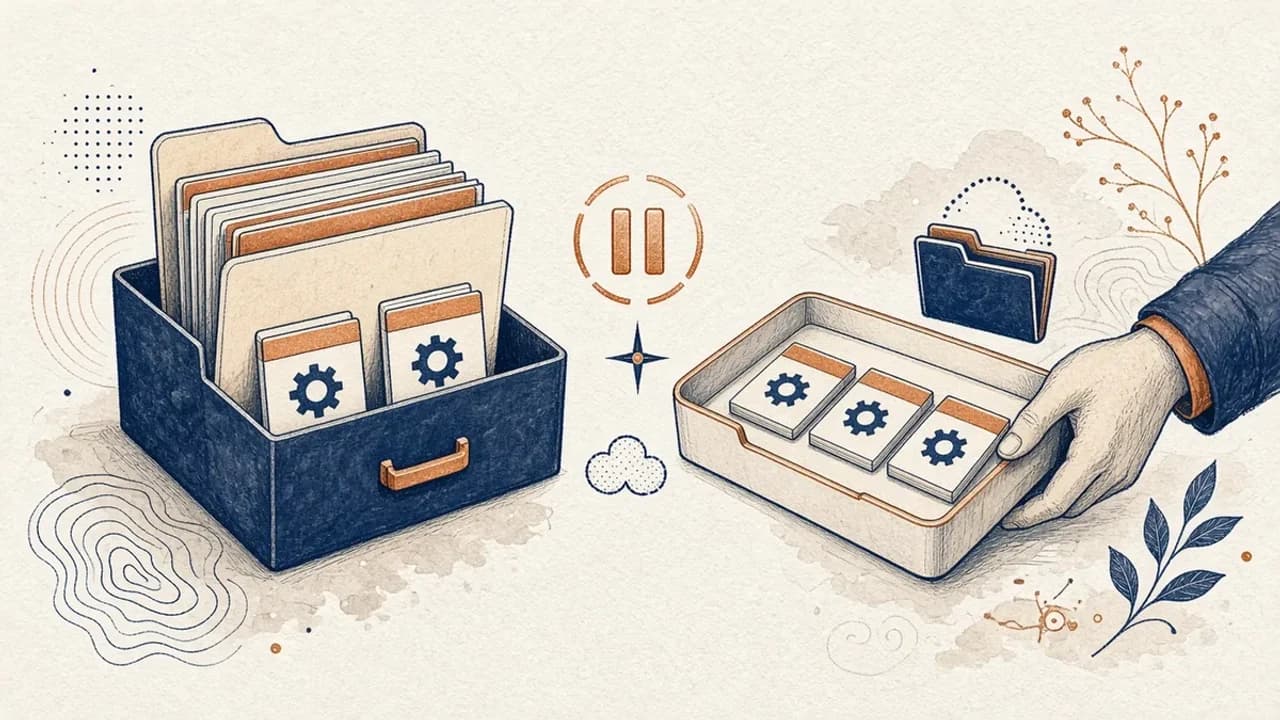
Guide PatchCleaner : gérer les fichiers Windows Installer sans risque inutile
Ce que PatchCleaner 1.4.2.0 de HomeDev compare vraiment dans C:\Windows\Installer, pourquoi Déplacer vaut mieux que Supprimer, et ce que la version de 2016 n’affirme pas.
Editorial Team · Oct 10, 2026
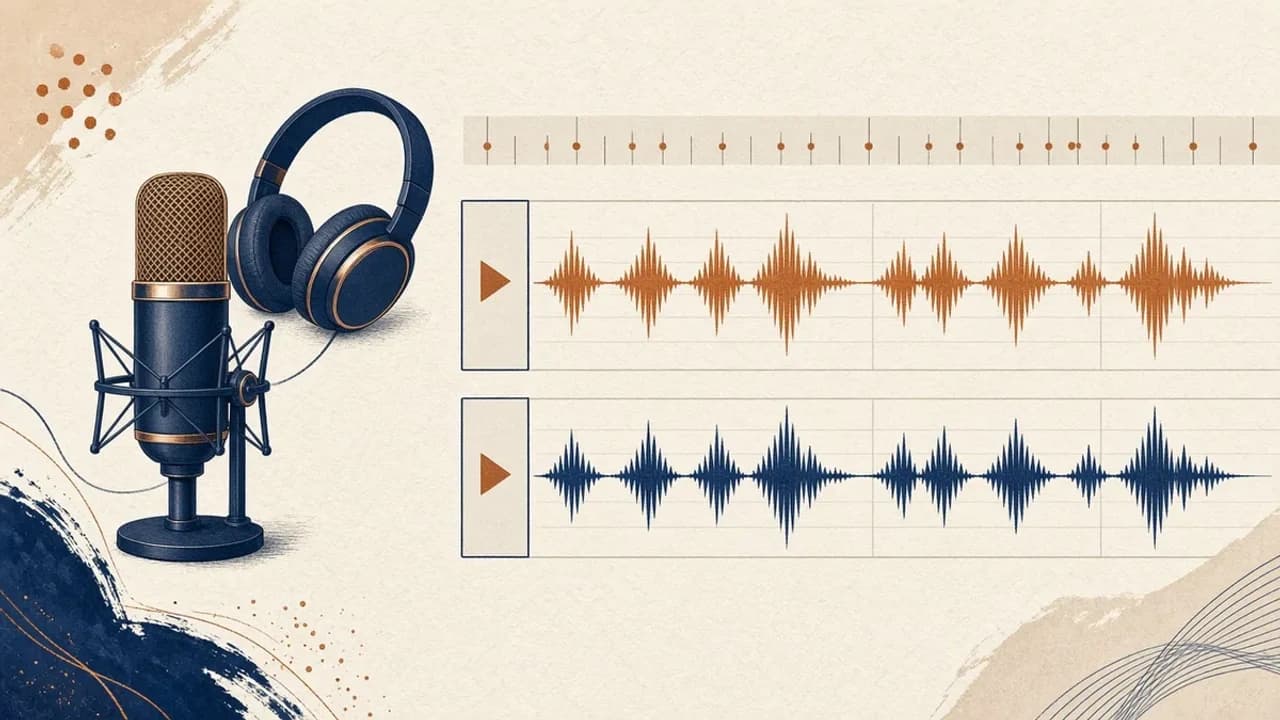
Audacity pour débutants : enregistrer et monter l’audio sous Windows
Installez Audacity 4 depuis la page Windows officielle, choisissez le micro, enregistrez, coupez et exportez avec les libellés du manuel actuel.
Editorial Team · Oct 10, 2026
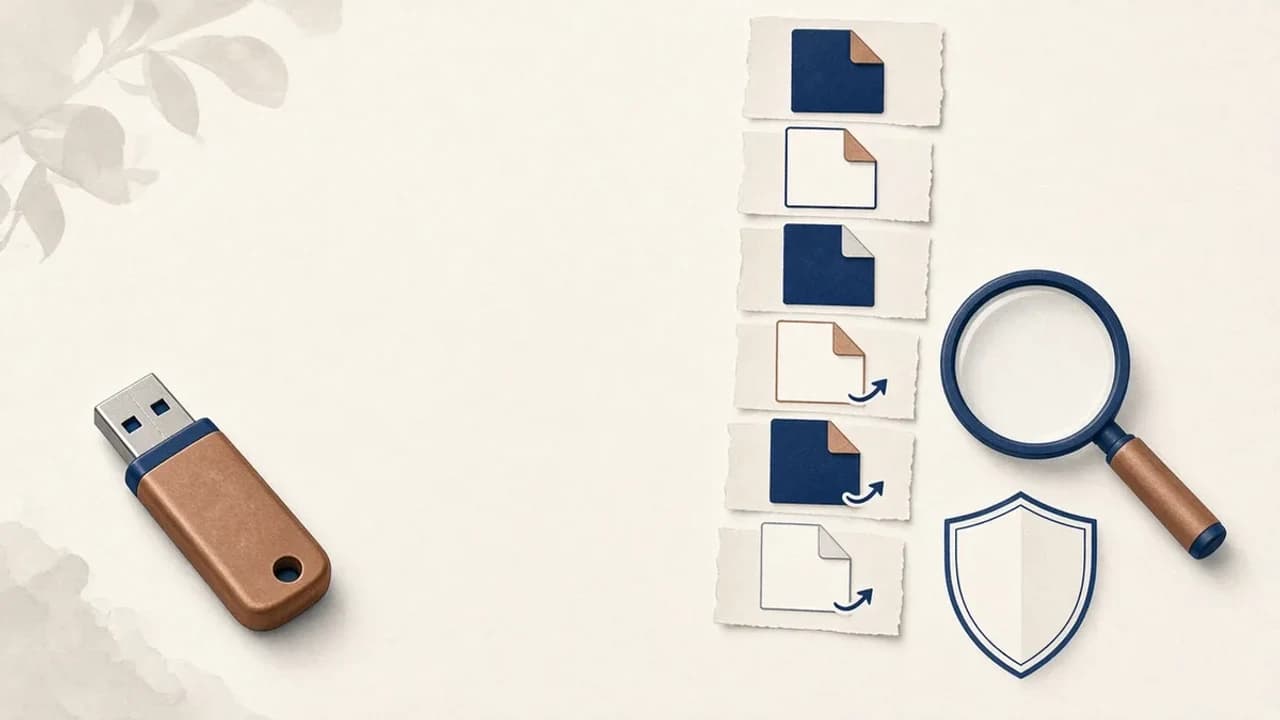
Supprimer les virus de raccourcis d’une clé USB sous Windows
Que faire si une clé USB affiche des raccourcis à la place de vos fichiers : protéger les données, vérifier Windows, et n’utiliser Shortcut Virus Remover que pour ce que l’éditeur documente.
Editorial Team · Oct 10, 2026