


Cómo comprobar si un programa de Windows es seguro antes de instalarlo
Revisión previa en Windows 10 y 11: editor, nombre de archivo, Authenticode, SmartScreen, hash y un análisis local.
Por Elena Voss · Sep 21, 2026
No se puede demostrar que un programa sea «seguro» en abstracto. Sí se pueden encadenar origen, firma, hash y un análisis local antes de elevar privilegios.
You cannot prove a Windows program is “safe” in the abstract. You can catch a lot of bad installs before they start by checking five things: where the file came from, what it is named, who signed it, whether Windows has seen it before, and what a local scan says.
The short answer
Do not run the file yet. Confirm the download page. Compare size and SHA-256 when they are published. Open Properties and read Digital Signatures. Treat SmartScreen as a reputation signal, not a full verdict. Scan the file with Windows Security. Only then elevate. A valid signature and a matching hash still do not mean the software is something you want.
Decide what “safe enough” means
Everyday software is a trade: a known publisher, a matching signature, Defender quiet, and no surprise bundled toolbar. That is enough for Firefox, 7-Zip, or VLC from a catalog page you trust. It is not enough for a “free optimizer” that arrived as a pop-up, a game crack, or a remote-support tool a stranger asked you to run on a call.
Security products in this catalog — Malwarebytes, AVG AntiVirus Free, Avast One Free, Norton 360 Deluxe — still get the same file-level checks. Brand names are not a substitute for confirming you have that vendor’s installer.
Start with the page, not the executable
Open the program listing from Softcoria search or a category such as Security. Check the product name, publisher, version, and that the download button is labeled for that build. Then look at the official site if you need a second confirmation of the vendor’s name.
Red flags on the way in:
- A page that auto-starts a download you did not click.
- Multiple stacked “Download” buttons with different domains.
- A filename in the browser shelf that does not match the product (for example a generic
setup.exefrom a site that was supposed to be a specific vendor). - A request to disable Windows Security “so the installer can run.”
Open file properties before you run anything
In File Explorer, right-click the file > Properties. On Windows 11 you may need Show more options first. On the General tab, check:
- Type of file. Application (.exe) and Windows Installer (.msi) are normal for setup. A screen saver (.scr) or JavaScript file claiming to be an installer is not.
- Size. A 400 KB “full suite” is usually a downloader stub or something else. Stubs are not automatically malicious, but they mean you will fetch more code later without a hash for the second stage.
- Name. Extra spaces, UNICODE lookalikes, or
program.exe.pdftricks belong in the recycle bin.
If the payload is inside a zip or 7z, inspect it with 7-Zip before you extract. Nested installer.iso plus a random crack.exe is a stop, not a puzzle.
Read the Digital Signatures tab
Still in Properties, open Digital Signatures when the tab exists. Select the listed signature > Details. Windows should report that the digital signature is OK if Authenticode validates. Read the signer name. It should be the company you think you downloaded — VideoLAN, Igor Pavlov, Malwarebytes, and so on — not an unrelated LLC.
Tab present, signature OK, expected publisherThe bytes match what that publisher signedContinue with hash and scanTab present, signature not validThe file changed, or Windows cannot build a trusted chainDo not installNo Digital Signatures tab on a third-party setupUsually no embedded Authenticode signatureSlow down; many established vendors sign buildsSigner name you do not recognizeYou may have the wrong file, a reseller wrapper, or worseStop and re-download from the official channelCatalog-signed Windows system files can validate without an embedded row. That is a Microsoft layout detail, not a reason to assume a random Downloads folder EXE is catalog-signed.
Ask PowerShell for Authenticode status
Microsoft documents Get-AuthenticodeSignature as the command-line view of the same system:
Get-AuthenticodeSignature -LiteralPath .\installer.exe | Format-List Status, StatusMessage, SignatureType, SignerCertificateStatus : Valid is the property you want for a signed third-party installer. Then read SignerCertificate subject. Hash mismatch or NotSigned means you should not treat the file as publisher-verified.
A separate command checks the bytes, not the signer:
Get-FileHash .\installer.exe -Algorithm SHA256Compare that value to the SHA-256 on the Softcoria program page. Full syntax is in How to check file hashes. The shorter catalog version is How to verify a downloaded installer.
Understand SmartScreen without over-reading it
Microsoft Defender SmartScreen looks at URLs and at downloaded programs, including the digital signature used to sign a file. If a file, app, or certificate already has a reputation, you may see no warning. If it does not, Windows can show Windows protected your PC.
Microsoft’s developer notes on SmartScreen reputation are useful even if you are not a developer: a valid signature can still warn until that exact file hash or publisher certificate has been seen enough times. Unsigned and self-signed files are more likely to hit the full “protected your PC” path.
On some Windows 11 PCs, Smart App Control can block unsigned or low-reputation apps more strictly than classic SmartScreen. If a machine was set up with Smart App Control on, “run anyway” may not exist. That is a policy of that install, not a broken download.
Scan with Windows Security
Open Windows Security (search from Start). Go to Virus & threat protection > Scan options > Custom scan and select the installer. Wait for the result before you double-click the file.
Real-time protection should already have looked at a file in Downloads. A custom scan is still worth it when you copied the file from a USB drive or extracted it from an archive.
If you want a second engine, use it as a one-off, not as a pile of always-on products. Malwarebytes is the catalog’s usual on-demand extra. Paid suites such as Norton 360 Deluxe replace or sit beside Defender depending on how they install — read that product page rather than stacking blindly.
What a signature does not prove
- It does not prove the software is high quality.
- It does not prove there is no bundled extra. Signed adware still exists.
- It does not prove the vendor will keep the program maintained.
- It does not replace a hash check. Two different signed files from the same company will have different hashes; you still want the build you intended.
USB writers such as Rufus are a good example of a small, widely signed tool where the remaining risk is operator error (wrong disk), not an unknown publisher. Password managers such as Bitwarden add a different question: whether you are ready to store vault data with that vendor. File-level checks cannot answer that.
Inspect archives before you elevate
If setup arrived as a zip, 7z, or RAR, list the contents first. A single VendorSetup.exe plus a readme is normal. A folder of random EXEs, scripts, and “disable-defender.reg” is not. Native Windows 11 extraction is covered in How to Open ZIP, RAR, 7Z and Other Archive Files on Windows; 7-Zip remains the better inspector because you can see paths without unpacking everything to Desktop.
Common mistakes
- Equating “Windows allowed it to run” with “Microsoft endorses this product.”
- Restoring a quarantined file because a forum said it was a false positive — without a matching official hash.
- Checking the signature on a shortcut instead of the actual setup binary.
- Running the file under an Administrator account so you can “see what happens.”
- Trusting a screenshot of a scan result that you did not produce on your PC.
Troubleshooting
Details says the signature is OK but SmartScreen still warns. That pair is possible. Reputation and signature are different systems. Re-check the signer name, then decide based on source.
PowerShell says Valid and Properties has no Digital Signatures tab. Common for catalog-signed Windows binaries. Unusual for a third-party download. Look at SignatureType in the cmdlet output.
Defender finds nothing, but the installer asks to turn off real-time protection. Stop. Legitimate setup may ask for a reboot or for a later Defender exclusion in rare driver cases; it should not start by disabling protection as a first step for a consumer app.
You already ran it. Disconnect if you think you were tricked, run a full Windows Security scan, change passwords from a different device if you typed any, and uninstall from Settings if the program appears there. Do not keep “just one helper” the setup added.
FAQ
If an installer is digitally signed, is it safe?
No. A valid Authenticode signature means the file has not been altered since that publisher signed it, and Windows can show the signer name. It does not mean the software is free of bugs, extras, or malice. Stolen or abused certificates exist. Always match the signer to the vendor you intended.
The Digital Signatures tab is missing. Is the file unsigned?
Often yes for a random download. Some Windows system files use catalog signatures instead of an embedded signature, which is why PowerShell may still report Valid for built-in binaries. For a setup you just downloaded, a missing tab plus Status NotSigned is a reason to slow down, especially if that vendor usually ships signed builds.
SmartScreen said the app was unrecognized. Does that mean malware?
Not by itself. Microsoft Defender SmartScreen warns when a file or publisher has little reputation, including brand-new legitimate installers. It also warns on known-bad files. Combine the warning with source, filename, signature, and a scan — do not treat it as a yes/no malware verdict.
Should I upload every installer to a public multi-scanner site?
Only if you accept that the file may be shared with vendors and researchers. For a private build or a document inside an archive, that can be the wrong move. Prefer Windows Security on the local PC first. Public scanners are optional second opinions for files you already consider public.
Does a matching SHA-256 prove the program is harmless?
It proves you have the same bytes the catalog or vendor published. If those bytes are a trojan, the hash will still match. Use the hash to catch corruption and lookalike files, then still check publisher identity.
Can I trust a program because VirusTotal showed zero detections?
Do not treat a single scan dashboard as a guarantee, and do not invent a “clean” result you did not actually collect. Engines disagree, packed installers confuse some scanners, and very new malware can miss. Use local Windows Security plus the signature and source checks above.
When should I use a second-opinion scanner?
After a download you already distrust, or when Defender is quiet but the installer still looks wrong. Malwarebytes is one on-demand option in this catalog. Keep Microsoft Defender enabled while you do that; stacking two real-time engines can cause fights.
Conclusion
Pre-install safety is a stack: page, filename, signature, hash, SmartScreen, local scan. Skip a layer and you are guessing. None of the layers is a certificate that the program will stay well-behaved next year — but together they catch most of the files you should never have opened.
Related Softcoria guides
- How to Safely Download and Install Software on Windows — the full install path after this review
- How to verify a downloaded installer — page, hash, signature, narrow install
- How to check file hashes — SHA-256 in PowerShell and certutil
- Windows security basics — habits after the program is installed
Related software
- Malwarebytes — on-demand second opinion
- AVG AntiVirus Free — confirm you have that vendor’s installer, not a wrapper
- Avast One Free Antivirus — same file-level checks as any other suite
- Norton 360 Deluxe — read how it sits next to Windows Security
- 7-Zip — inspect archive contents before extract
- Bitwarden — store the account you may create during setup
Guías relacionadas
Ver todo →Windows Update Assistant: How to Download and Use It to Update Windows 10
Editorial Team · Oct 16, 2026
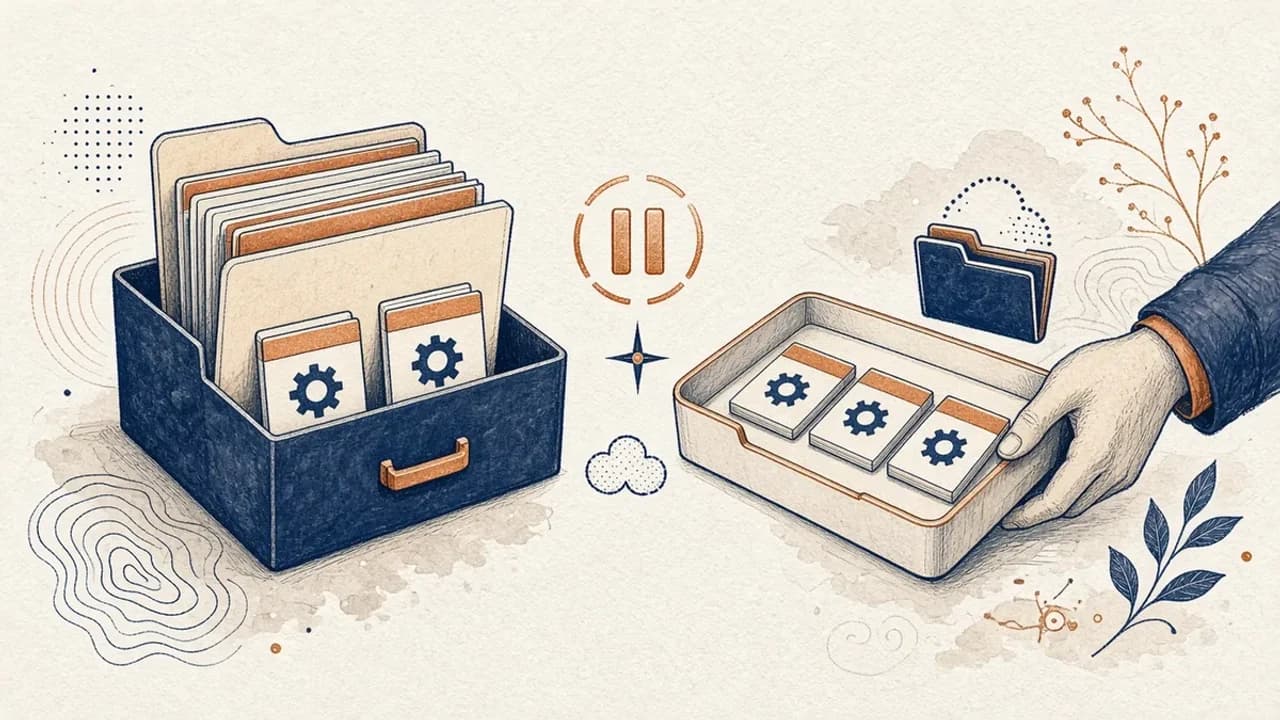
Guía de PatchCleaner: gestionar archivos de Windows Installer con cuidado
Qué compara de verdad PatchCleaner 1.4.2.0 de HomeDev en C:\Windows\Installer, por qué Mover es más prudente que Borrar y qué no afirma la versión de 2016.
Editorial Team · Oct 10, 2026
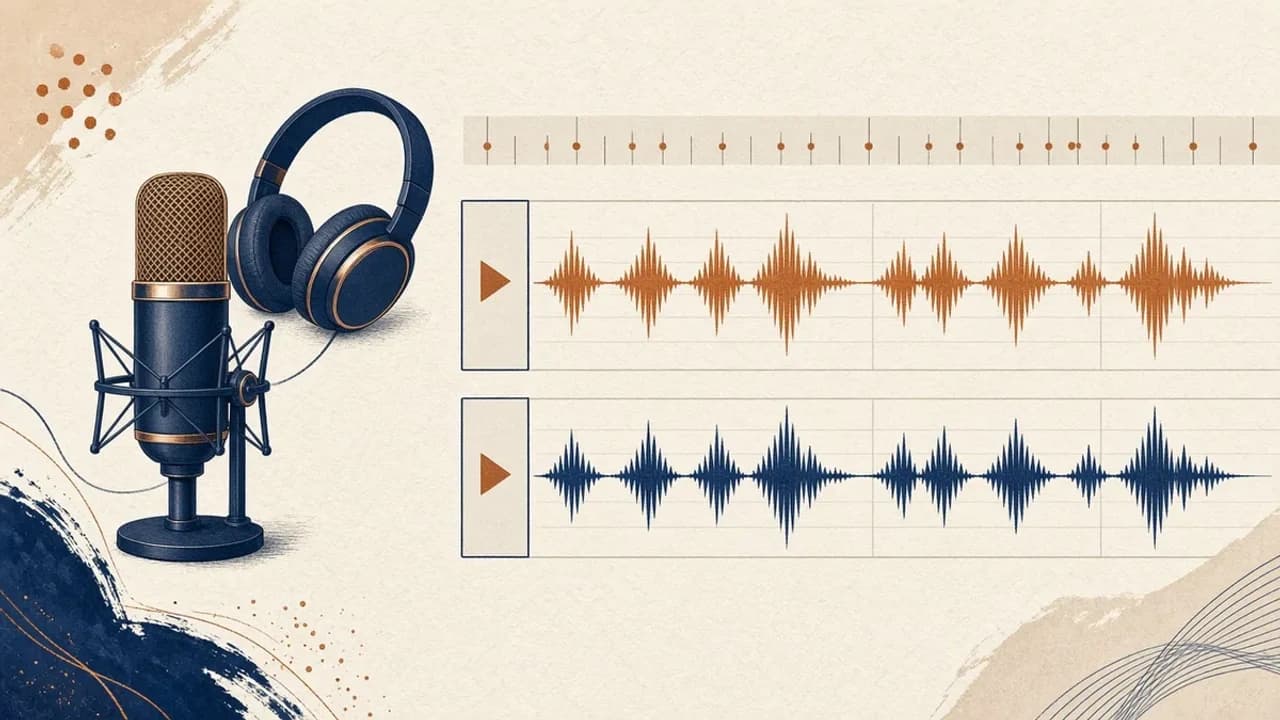
Audacity para principiantes: grabar y editar audio en Windows
Instala Audacity 4 desde la página oficial de Windows, elige el micrófono, graba una toma, recórtala y expórtala con los nombres del manual actual.
Editorial Team · Oct 10, 2026
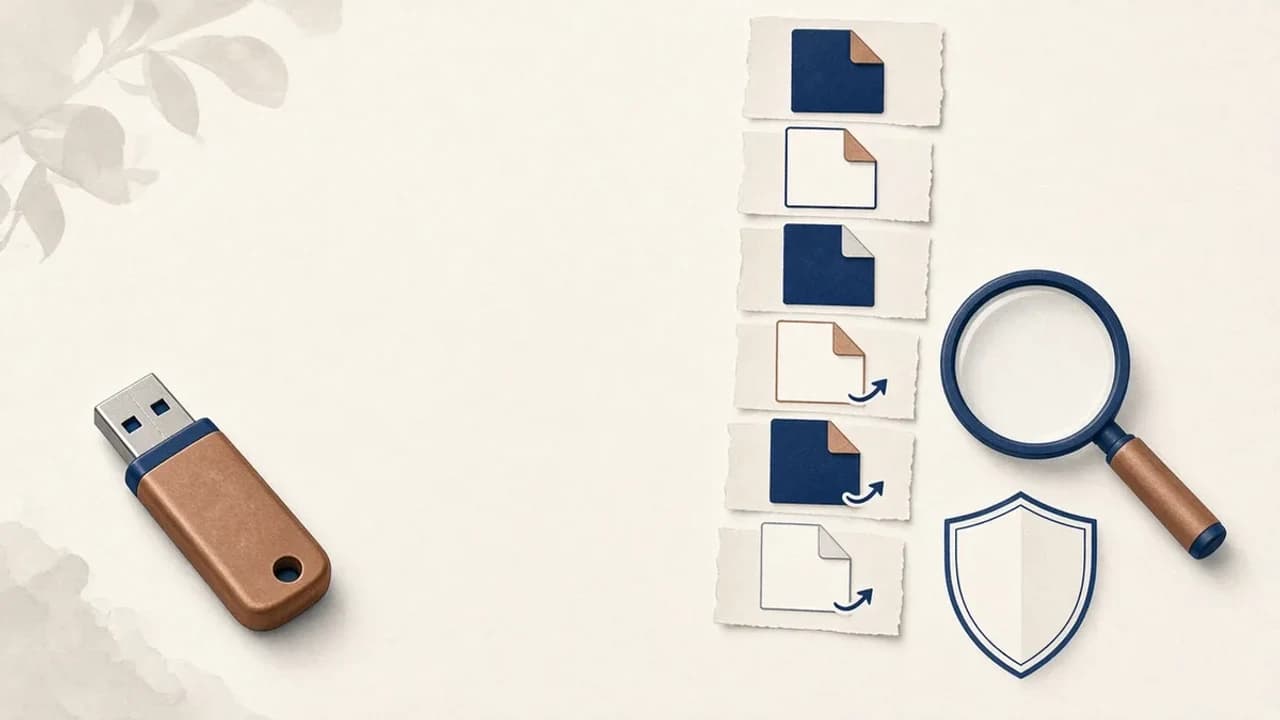
Cómo quitar virus de accesos directos de un USB en Windows
Qué hacer si un USB muestra accesos directos en lugar de tus archivos: protege los datos, revisa Windows y usa Shortcut Virus Remover solo para lo que el editor documenta.
Editorial Team · Oct 10, 2026